

Domain and Email: A Practical Setup Guide
TL;DR: Your domain is your website address, and a business email uses that same domain after the
@, such asyou@yourcompany.com. To set it up, choose a domain and email service, connect the required DNS records, create professional inboxes, and configure 3 key email-authentication standards: SPF, DKIM, and DMARC to improve deliverability.
You may already own a domain, yet customers still see a generic Gmail address in their inbox. When I help Indian businesses set this up, the mismatch weakens trust, while connecting a professional mailbox often becomes a frustrating DNS puzzle. At the end of Q4 2025, 386.9 million domain names were registered worldwide, so choosing a memorable address is only the first decision. This guide walks Indian businesses and individuals through domain selection, email hosting choices, DNS configuration, mailbox creation, authentication, testing, and common mistakes that can cause delivery problems or leave your new address unusable.
| Point | Details |
|---|---|
| Separate the basics | A domain identifies your online address, while email hosting provides the inboxes and sending infrastructure attached to it. |
| Choose for fit | Shared email hosting may suit a small team, while Google Workspace or a dedicated email server can better fit larger collaboration or control needs. |
| Plan DNS changes | Prepare A or CNAME records, MX records, and email authentication records before changing a live domain. |
| Authenticate every sender | Gmail requires SPF, DKIM, and DMARC for senders delivering more than 5,000 messages per day to Gmail accounts. |
| Test before launch | Verify receiving, sending, mobile display, authentication, forwarding, and spam-folder behavior across at least 2 devices before publishing the address widely. |
What Are a Domain and Business Email?
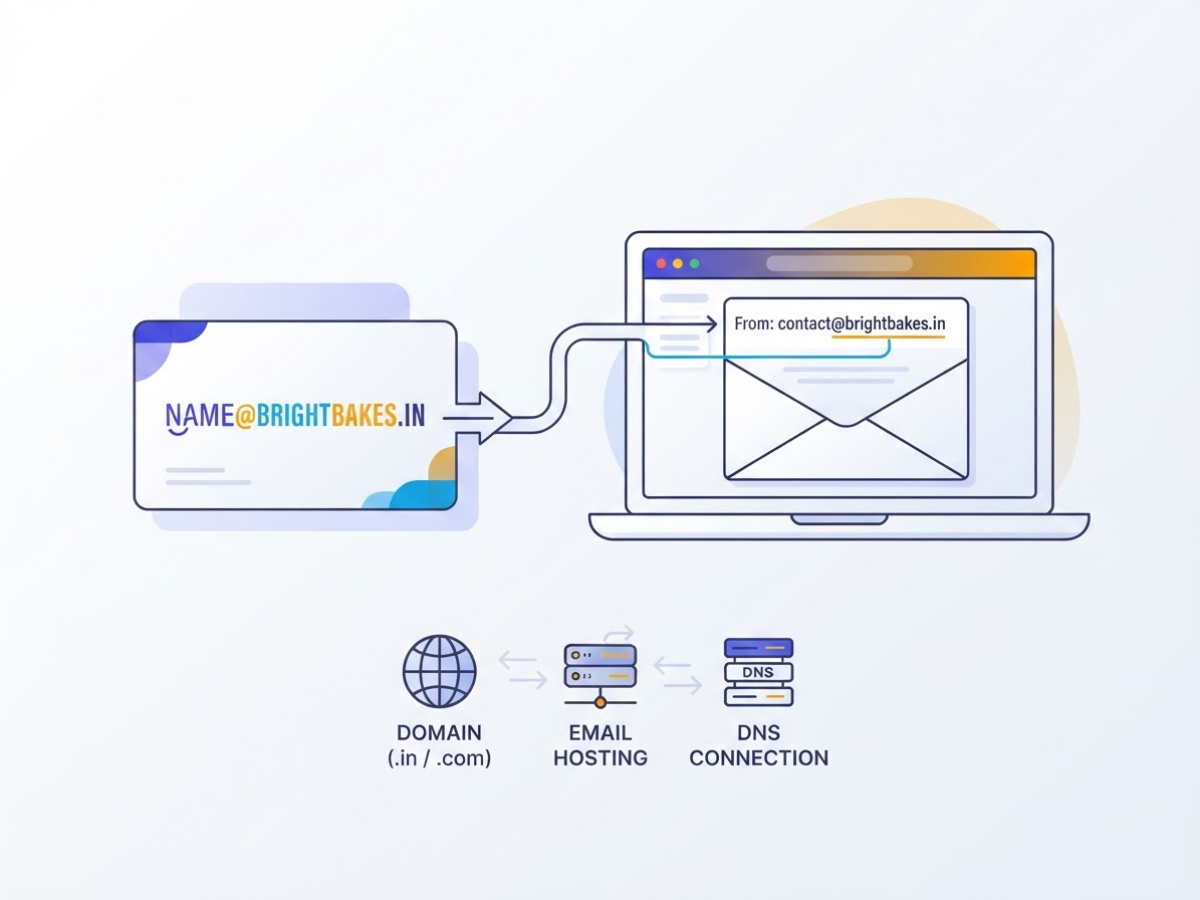
When we help a new business set up its online presence, the first confusion usually comes from treating a domain, a website, and email as one product. They are connected, but they do different jobs. A domain is the human-readable address you register through a domain registrar, such as brightbakes.in or brightbakes.com.
The domain supplies the identity after the @ in an email address. Email hosting provides the service that stores incoming messages, sends outgoing messages, and gives you a mailbox you can open in Gmail, Outlook, or webmail. DNS connects these pieces by telling the internet where the website and email services are located. DNS setup is often the annoying part because one incorrect record can make a website load while email stops working.
| Service | What it does | Bright Bakes example |
|---|---|---|
| Domain registration | Reserves the address for a specific period | brightbakes.com |
| Web hosting | Stores website files and serves the site | The bakery’s homepage and menu |
| Email hosting | Stores and sends business messages | hello@brightbakes.com |
| DNS | Routes the domain to the right services | Sends web visitors to the site and mail to the inbox |
For example, Bright Bakes might register brightbakes.com, host its website with one provider, and use a separate email service for five staff inboxes. The domain registrar keeps ownership of the address, while web and email hosting providers handle the day-to-day services. Our domain mail setup guide for business email covers the records you typically configure, including mail-routing records.
Buying a domain does not automatically give you a professional inbox. Some registrars bundle a trial mailbox, forwarding, or a basic address, but many sell only the registration. Check the package before assuming you@yourcompany.com is included. Otherwise, you may own the address and still have nowhere to read its messages.
Pro Tip: Register the domain and email service with compatible support teams when possible, but keep the domain registrar account under the business owner’s control.
Naming choices are also getting tighter: 386.9 million domain-name registrations existed across all top-level domains at the end of Q4 2025. Next, you need to choose an address that customers can remember and type correctly.
Domain Name or Email Service: What Should You Buy?
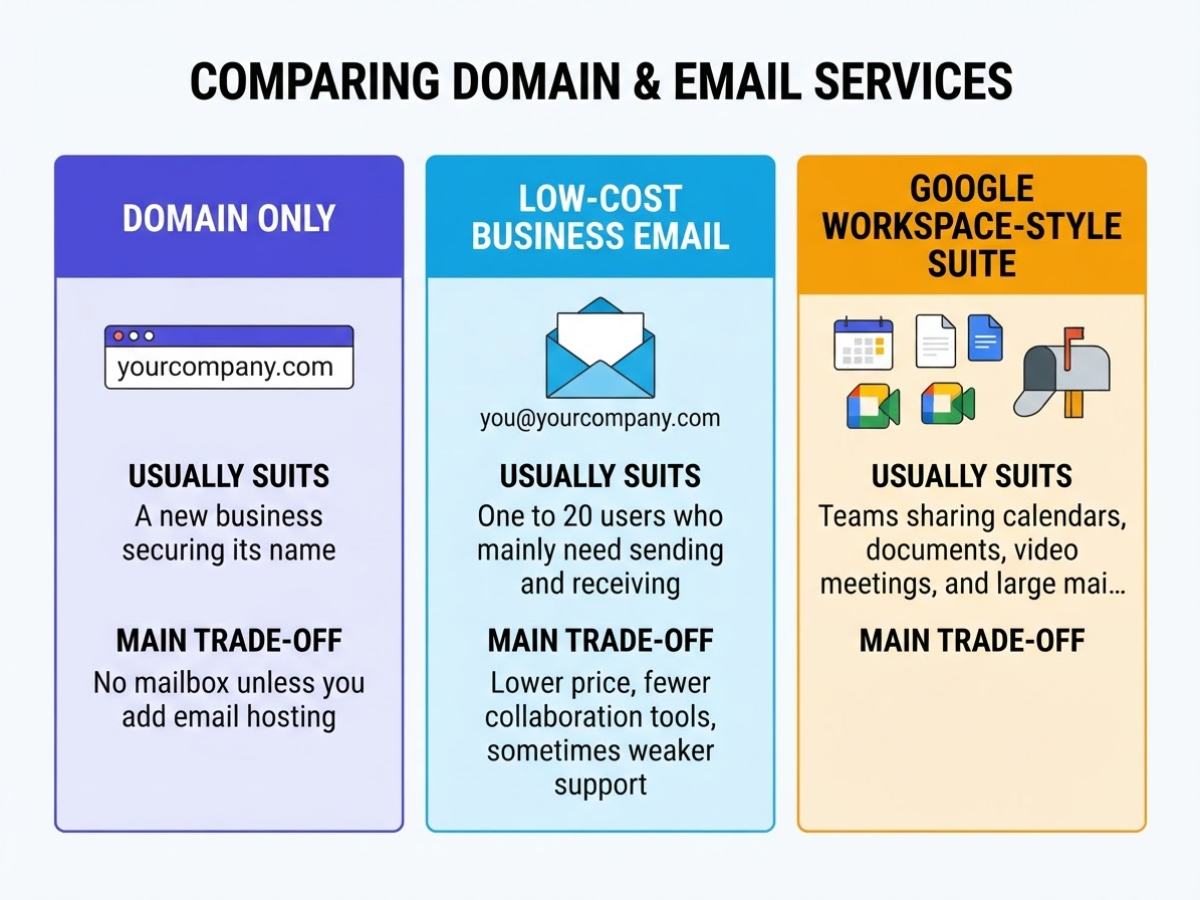
A domain is your address, not your inbox. Registration gives you ownership of yourcompany.com; mailbox hosting stores messages and lets you send from you@yourcompany.com. You can buy them from the same provider, but they remain separate services, which is why a domain can stay active even after you move email elsewhere.
The choice becomes clearer when you compare what you actually need:
| Option | Usually suits | Main trade-off |
|---|---|---|
| Domain only | A new business securing its name | No mailbox unless you add email hosting |
| Low-cost business email | One to 20 users who mainly need sending and receiving | Lower price, but fewer collaboration tools and sometimes weaker support |
| Google Workspace-style suite | Teams sharing calendars, documents, video meetings, and large mail storage | Higher per-user cost and more administration across user accounts |
| Dedicated email server | Organisations needing server-level control, custom policies, or high-volume workflows | You manage updates, backups, reputation, security, and delivery problems |
When I help clients set up a domain and email, small teams often overbuy collaboration software. If staff only need professional addresses and basic webmail, a low-cost host is usually enough. The annoyance is that cheap plans can impose small storage limits, slow support, or confusing spam filtering, so check those terms before you move every mailbox.
Pro Tip: Decide how many real mailboxes you need separately from aliases such as sales@, support@, and billing@; aliases can reduce unnecessary monthly seats.
A suite earns its price when people actively use shared calendars, document editing, search, and video meetings. A dedicated server is different: it may fit a regulated organisation or a team with an in-house mail administrator, but it is a poor shortcut for ordinary business email. One missed update or bad DNS record can hurt delivery, and you must monitor authentication, backups, abuse complaints, and IP reputation yourself. For implementation details, use this domain mail setup guide for business email.
Your domain also carries credibility. The combined .com and .net base reached 173.5 million registrations at the end of Q4 2025, so a short, distinctive name is worth protecting before a competitor takes it.
Make the final decision using six checks: user count, storage per mailbox, shared calendars, expected sending volume, support quality, and monthly budget. Choose domain-only if you are reserving a name, basic hosting for straightforward mail, a collaboration suite for daily teamwork, and a dedicated server only when control justifies the administrative burden. Next, the setup details determine whether your chosen service actually delivers reliably.
How to Connect Your Domain to Email in 7 Steps
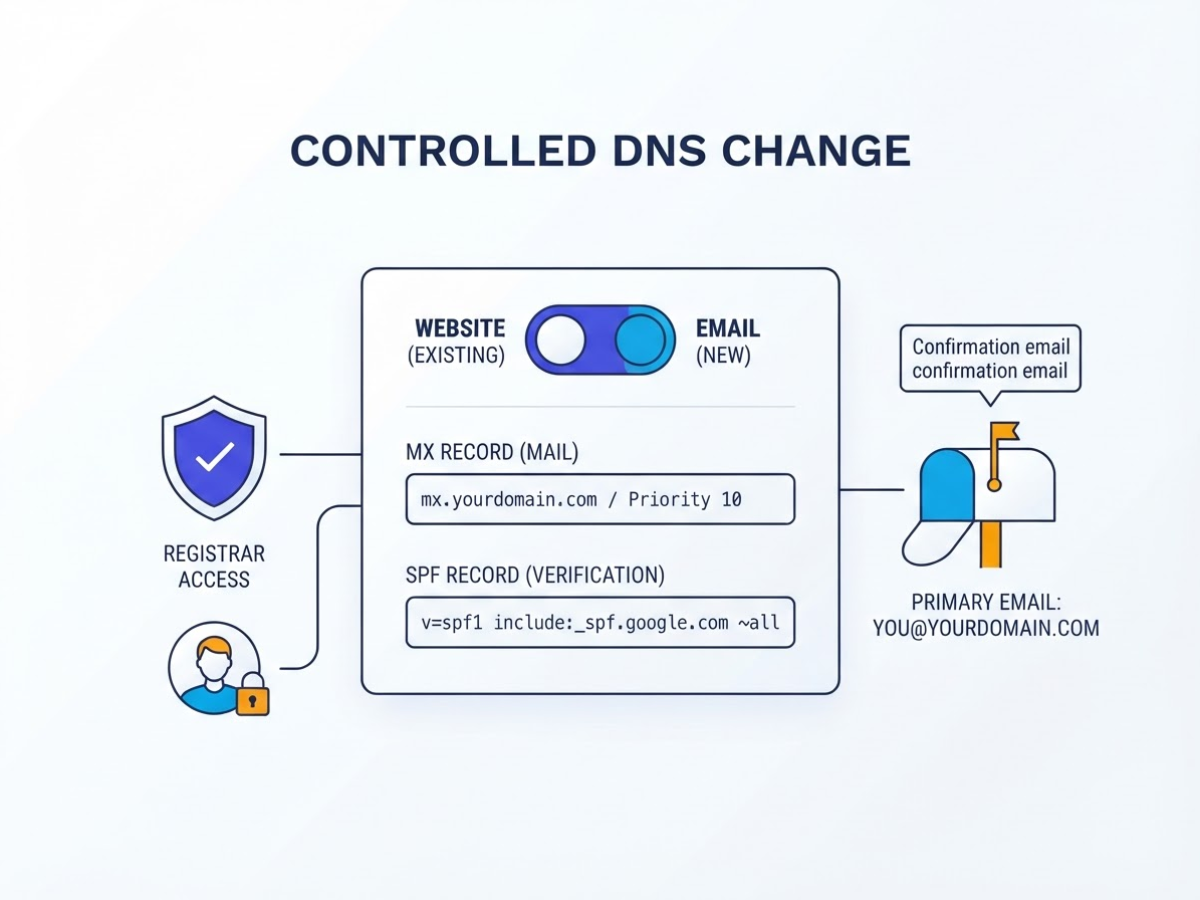
I treat domain-and-email setup as a controlled DNS change, not a quick “click connect” task. The mailbox itself is usually easy; the annoying part is changing records without breaking an existing website or losing access to the registrar.
- Register the domain and secure access. Choose a domain that customers can spell and remember, then register it through your preferred registrar. Confirm the verification email, enable two-factor authentication, and check that you can reach the administrative account. If you are still comparing names, this guide to choosing and registering a domain covers the practical checks.
- Buy email hosting and create users. Select an email hosting plan with enough storage and accounts for your team. Create the primary mailbox, such as
you@yourdomain.com, then add required aliases such assales@,support@, orbilling@. An alias normally forwards into a mailbox, so do not pay for separate users when you only need alternate addresses. - Record the current DNS zone. Open the registrar’s DNS manager and export or copy every existing record before editing anything. Note the A, CNAME, MX, TXT, and forwarding records, including their TTL values. This step feels tedious, but it gives you a rollback plan if your website disappears or email stops resolving.
Pro Tip: Take a screenshot or export of the original DNS zone before editing; it makes rollback much faster if the website or email stops resolving.
- Replace the mail routing records. In the DNS manager, add the email provider’s MX records exactly as shown, including priority numbers and trailing dots if the provider requires them. Remove conflicting or obsolete MX entries only after confirming the replacement values. Leave website records alone. A stray old MX record is a common reason some messages arrive at the wrong service.
- Add email authentication. Publish the provider’s SPF, DKIM, and DMARC records exactly as supplied. Put each record in the requested host or name field, and do not create a second SPF record. These checks affect delivery, and Gmail requires SPF, DKIM, and DMARC from senders exceeding 5,000 messages per day.
- Wait, then test every route. DNS changes may appear within minutes, but allow up to 24 to 48 hours before judging the setup. Send a message into the new mailbox, send one out, reply to it, test each alias, sign in from your phone, and run password recovery. Check delivery to Gmail and another provider, not just an address on the same domain.
- Document the finished setup. Save the final MX, SPF, DKIM, and DMARC values, registrar renewal date, hosting renewal date, admin usernames, two-factor recovery method, and recovery contacts. Store this record somewhere the owner can access if the original administrator leaves. With those checks complete, you can move on to configuring the mailbox for daily business use.
Which Domain and Email Setup Fits Your Business?
The right choice usually becomes obvious when you start with the work, not the provider’s feature list. I have seen solo consultants buy a full office suite, then use one inbox and complain about paying for tools they never open.
| Your situation | Sensible setup | Why it fits |
|---|---|---|
| One person or a small local shop | One or a few hosted mailboxes on your domain | You get addresses such as hello@yourbusiness.in without managing a server |
| A growing team sharing appointments and files | A productivity suite | Shared calendars, document collaboration, admin controls, and account recovery justify the higher per-user cost |
| A company with delivery rules or unusual security needs | Specialist email hosting or a managed server | You may need custom policies, sending controls, logs, or technical support |
For a freelancer, clinic, agency, or neighbourhood retailer, start with hosted business email. Pay for the mailboxes you actually need, such as name@, sales@, and support@. A shared address can work for enquiries, but do not give three people one password. That creates messy ownership when someone leaves. This domain mail setup guide for business email covers the DNS records and mailbox decisions that usually cause trouble.
Choose a productivity suite when your team genuinely depends on shared calendars, live documents, video meetings, and central user management. If you only need branded replies, it is usually expensive overkill. In India, check the provider’s INR billing, local support hours, Android and iPhone apps, storage limits, and renewal price. A low introductory rate is not a bargain if support is overseas and every account change becomes a ticket. DomainAdda is worth comparing when affordability and India-based service matter more than a long list of extras.
You need specialist help when messages require custom routing, separate transactional and staff mail, strict retention rules, dedicated IP decisions, or regular authentication monitoring. For Gmail recipients, senders above 5,000 messages per day must use SPF, DKIM, and DMARC, and Google expects spam rates below 0.30%.[^1]
Do not use ordinary business mailboxes for newsletters or promotional blasts. Put those campaigns in an email marketing platform, where consent, unsubscribes, bounce handling, and reporting are built in. Mailchimp’s benchmark reports a 35.63% average open rate and 2.62% click rate across users, but your results depend on list quality and message relevance.[^2] The next decision is choosing the right provider and checking its limits before you migrate.
[^1]: Google sender guidelines[^2]: Mailchimp email marketing benchmarks
Domain and Email Setup Mistakes to Avoid
During migrations, the damage usually comes from one rushed DNS edit, not from the email provider itself. I have seen a website disappear because someone replaced the existing DNS zone with mail records, then wondered why the homepage stopped loading. Website records and MX records do different jobs: A, AAAA, CNAME, and related records help browsers find your site, while MX records tell other mail servers where to deliver messages.
Keep a copy of the complete DNS zone before changing anything. If you need a practical reference, use this domain mail setup guide for business email and compare each proposed record with your current entries.
Common mistakes that create avoidable outages include:
- Publishing two SPF TXT records. Receivers may treat them as invalid. Put every approved sender, such as your mailbox provider, CRM, and newsletter platform, into one SPF record.
- Copying a DKIM key with a missing character, quote, or line break. One small error can make every signed message fail authentication.
- Enforcing DMARC before you know which services send as your domain. Start with monitoring, review aggregate reports, fix legitimate senders, and only then consider moving from
p=noneto enforcement. - Making a personal Gmail address the only owner or recovery address for your registrar, hosting, or email admin account. If that person leaves, access becomes a painful ownership dispute.
- Reusing a short password or skipping two-factor authentication because setup feels inconvenient. Business email accounts are valuable targets, especially when they can reset other services.
- Forgetting domain, hosting, or mailbox renewals. A missed renewal can interrupt both your website and email, sometimes before anyone notices the billing email.
- Assuming forwarding works without testing it from outside the organization. Send messages from Gmail, Outlook, and a mobile account, then check delivery, replies, and spam folders.
- Ignoring complaint reports. Gmail expects reported spam rates to stay below 0.30%; repeated complaints can push legitimate campaigns into spam or lead to rejection.
Do not treat the first successful test email as proof that the migration is finished. Check website resolution, inbound and outbound mail, authentication results, forwarding, renewals, and complaint data again after 24 to 48 hours. Next, use those checks to decide which domain and email arrangement fits your daily operations.
How to Measure Whether Your Setup Is Working
A working setup should give you evidence, not just a green check mark in your email provider. I review performance in two separate lanes: everyday business email, where reliability and response time matter, and permission-based campaigns, where delivery must be separated from engagement and revenue.
Use this post-launch schedule:
- First 24 hours: Send test messages to Gmail, Outlook, and a customer address. Check delivery success, bounce rate, spam complaints, and authentication results for SPF, DKIM, and DMARC. Reply to the test from a separate account and record how long it takes to arrive. A message that arrives 20 minutes late can still hurt a support workflow.
- First seven days: Watch normal business email for rejected messages, repeated bounces, missing replies, and unusual delays. Review your domain mail setup if authentication fails or messages land in spam. Do not judge the system from one successful test. DNS changes can behave differently across recipient networks.
- After each campaign: Record delivery rate, hard and soft bounces, spam complaints, unsubscribes, opens, clicks, conversions, and revenue. Delivery metrics tell you whether the message arrived. Engagement metrics show what recipients did afterward, but they do not prove that the campaign made money.
- Every month: Review DMARC reports for unauthorized senders, alignment failures, and unexpected volume. Then compare campaign results with one business goal, such as booked calls, completed purchases, resolved support cases, or qualified leads. Keep the goal narrow enough that a salesperson or support manager can verify it.
Open rates are useful for spotting direction, not declaring victory. Privacy protections, mailbox scanning, and automated image loading can inflate or distort them. Litmus found that 72% of surveyed marketers were unsure of their email-program ROI, which is a good reason to track clicks through to conversions and revenue instead of stopping at opens.
If delivery stays high but replies, clicks, or completed actions remain weak, your problem is probably the offer, message, audience, or follow-up rather than the domain itself. The next step is to fix the setup issues that quietly distort these measurements.
My honest take on domain and email
I have seen enough domain and email setups go wrong to separate these decisions carefully. I treat the domain as the business’s long-term identity and email hosting as the operational layer. You may change mail providers next year, but moving away from a domain that customers already know can create confusion, broken links, and missed messages. Keep domain ownership with the business, not with a freelancer or an employee’s personal account.
Here’s the contrarian part: the cheapest mailbox is often the most expensive choice. A failed DNS change, weak deliverability, or one locked administrator account can cost more than paying a little extra each month. I would start a solo operator with a small plan, but I would not launch without SPF, DKIM, a recovery method, and documented admin access. Those tasks are dull, and skipping them creates the kind of problem nobody notices until an important invoice or customer reply disappears.
For a growing company, I would choose the setup the team can maintain every week, not the platform with the longest feature list. Check local support, renewal pricing, mailbox limits, and migration terms before buying. I also recommend sending test messages to Gmail and Outlook accounts before launch. A setup that works in the control panel but lands in spam is not ready.
— AVM Cloud Content Strategy Team
Set up your domain and email with AVM Cloud
If your domain and mailbox setup still feels pieced together, AVM Cloud’s DomainAdda services offer a practical place to review the basics in India. Start by checking whether you need only a domain, a few business mailboxes, or business email hosting with setup guidance. The cheapest plan is not always the right one if you outgrow its mailbox limits, but paying for features you will not use creates a different kind of waste.
Compare the available plans, begin with the smallest setup that covers your current team, and use the support documentation to configure DNS records and email authentication correctly. That step can be fiddly, especially when an old provider has left conflicting records behind. Once your sending identity is stable, you can add email marketing tools for customer campaigns or SMS marketing separately rather than mixing growth tools into an unfinished email setup.
Frequently Asked Questions
Can I use my domain for email without having a website?
Yes. You can use a domain for professional email without publishing a website, but you need an email hosting service and correct DNS records, including MX records. In practice, mailbox setup may take about 10 minutes, while a missing or incorrect MX record can stop incoming messages entirely.
How many email addresses should a small business have?
Start with one mailbox for each active user, then add shared addresses such as sales@ and support@ when customers need a clear contact point. A five-person business might use 5 individual mailboxes plus 2 shared addresses, while aliases can cover extra names without creating another login.
How long does it take for domain email to start working?
Creating the mailbox can take only a few minutes, but DNS updates may need 24 to 48 hours to appear consistently across providers. Test by sending messages from at least 2 different networks or email services, because one successful test does not prove every recipient can reach you.
Can I move business email to another provider later?
Yes, but treat the move as a planned migration rather than simply changing one setting. Export or copy the mailbox data, recreate users and aliases, reduce the DNS TTL several hours in advance when possible, and switch the MX records during a 1 to 2-hour maintenance window.
What is the difference between a mailbox and an email alias?
A mailbox has its own login, storage, and usually a separate password, while an alias usually delivers messages to an existing mailbox. For example, one employee can use 3 aliases such as hello@, billing@, and their name without paying for 3 separate mailboxes, but those aliases normally cannot sign in independently.
Recommended reads
- Domain Mail Setup Guide For Business Email
- Business Email Hosting Setup And Buying Guide
- Email Server For Business Setup And Selection Guide
- Web Hosting Vs Domain Name The Difference
Sources
- DNIB.com Reports Internet Has 386.9 Million Domain Name Registrations at the End of the Fourth Quarter of 2025
- Email sender guidelines – Gmail Help
- Sender Best Practices | Sender Hub
- Email Marketing Benchmarks & Industry Statistics
- The State of Email Innovations Report | Litmus
- Rebranding and Re-engaging: The Biker Company’s Path to Success with Mailchimp
- How Labroots achieved click rates 6x the industry average