

How to Host a Website: Step-by-Step Guide
TL;DR: To host a website, register a domain, choose a hosting plan, connect the domain to your host with nameservers or DNS records, upload or install the site, and enable HTTPS. For most beginners, shared hosting is the simplest and least expensive starting point, while VPS or cloud hosting makes more sense when you need extra control or resources. Before launch, test the site, confirm HTTPS works, set backups, update software, and check that your domain and hosting renewals are active.
You buy a domain, point it somewhere, and then wonder why your site still shows a blank page, a parking screen, or an SSL warning. That gap frustrates beginners because “hosting” sounds like one purchase, when it actually involves several settings that can fail quietly. Test the result on your phone, not only your laptop, because Google primarily uses the mobile version of a website’s content for indexing and ranking. This guide walks you through domain and hosting roles, choosing a sensibly priced plan, connecting DNS, deploying WordPress or files, enabling SSL, testing the finished site, and handling first-week maintenance without assuming technical knowledge or pushing you toward an expensive server.
| Point | Details |
|---|---|
| Domain versus hosting | Your domain is the address visitors type, while hosting stores and delivers your website’s files and database. |
| Start with shared hosting | A small brochure site or early blog can usually start with shared hosting and upgrade when traffic or resource use outgrows the plan. |
| Connect DNS correctly | Allow up to 24–48 hours for nameserver or DNS changes to propagate, although some visitors see the new site sooner. |
| Enable HTTPS early | Activate an SSL certificate before sharing forms, logins, or payment pages so visitors’ connections are encrypted. |
| Test before promotion | Check at least 6 areas, including mobile layouts, forms, links, backups, loading speed, and domain email, before announcing the site. |
What website hosting actually does
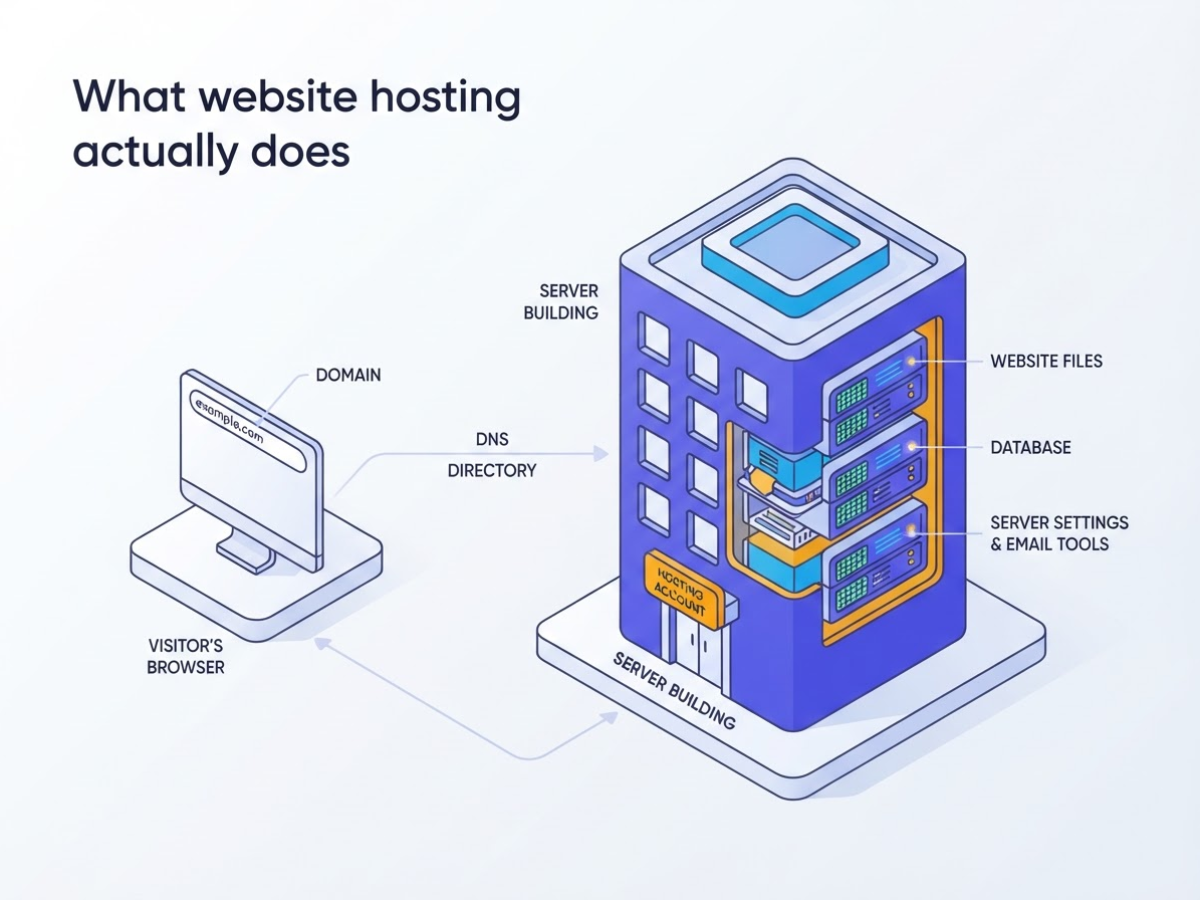
When you host a website, you rent space on a server connected to the internet. The hosting company stores your site’s files and runs the services that send those files to a visitor’s browser when someone types your web address. Think of hosting as the building where your website lives, not the sign people use to find it.
Here is the practical map:
- Domain: Your readable address, such as
example.com. - DNS: The directory that points the domain to the correct hosting server.
- Hosting account: Your rented space, server settings, email tools, backups, and control panel.
- Website files: HTML, CSS, JavaScript, images, themes, and plugins.
- Database: The storage area for posts, products, customer accounts, and other changing content. A simple brochure site does not need one, but WordPress does.
- SSL certificate: The certificate that enables HTTPS and encrypts the connection between the visitor and your site.
The home-address analogy helps here. Your domain is the street address, DNS is the map that directs visitors there, and hosting is the house. The files are your furniture. Buying the address alone does not build the house or put anything inside it. That is why a registered domain can still show a blank page, a parking screen, or an error.
Domain registration has its own chain of businesses. A registry operator maintains a top-level domain such as .com; a registrar sells the registration to you; and a reseller can sell domains or hosting on a registrar’s behalf, as ICANN explains. The labels matter when renewals or DNS changes go wrong, because support may sit with a different company than you expect.
Pro Tip: Choose a registrar and host that let you manage DNS, backups, SSL, and renewals from clearly labeled dashboards.
For a closer look at the practical differences, compare web hosting and a domain name before choosing a plan. The next decision is the type of hosting your site actually needs.
Choose the right hosting plan before you buy
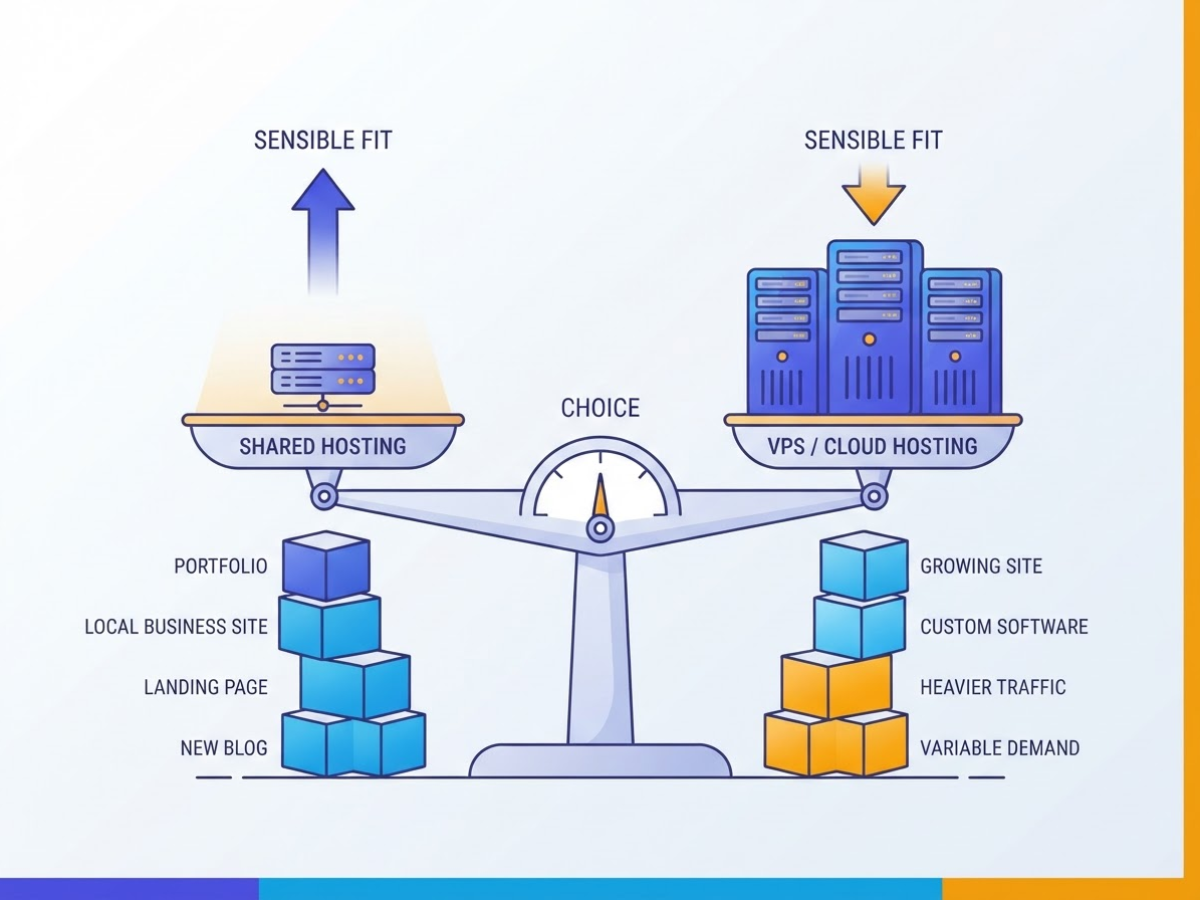
The cheapest plan is not automatically the sensible one. Match the hosting category to what you will run, how many people may visit, and how much server work you are willing to handle yourself.
| Hosting type | A sensible fit | What to watch for |
|---|---|---|
| Shared | Portfolio, local-business site, landing page, or new blog | Other accounts share server resources, so busy neighbours can slow you down |
| Managed WordPress | WordPress site owner who wants updates and routine maintenance handled | You get fewer plugin and server-settings options |
| VPS | Growing site, custom software, private resources, or more control | You usually manage patches, security, and configuration |
| Cloud | Heavier traffic, variable demand, or an application needing flexible resources | Billing often becomes confusing when usage rises |
| Reseller | Designer or agency hosting several clients | You handle client support, accounts, and some troubleshooting |
For most first websites, shared hosting is enough. A restaurant site with a menu and contact form, a freelancer’s portfolio, or a blog attracting a few thousand visits a month does not need a VPS. Paying for one early often buys you maintenance work rather than a noticeable improvement.
Move to a VPS when another customer’s traffic cannot be allowed to affect you, or when you need custom software, background jobs, unusual PHP settings, or direct server access. Cloud hosting makes more sense when traffic arrives in sharp bursts, such as during campaigns or ticket launches. Managed WordPress is the practical middle ground if you want WordPress-specific support but do not want to troubleshoot every update.
Before checkout, compare these details, not just the disk-space headline:
- Storage type and limits, bandwidth rules, and whether “unlimited” has fair-use restrictions.
- Automatic backups, retention period, restore fees, free SSL, email mailboxes, and migration help.
- Support hours, response channels, uptime expectations, and the renewal price after the first term.
Pro Tip: Judge a plan by its renewal price, backup policy, and support scope, not only by the introductory monthly rate.
For WordPress, check the server before you install anything. WordPress recommends PHP 8.3 or greater, MariaDB 10.11 or greater or MySQL 8.0 or greater, and HTTPS support. A host advertising old PHP or refusing HTTPS is already creating a problem you will later have to pay to fix. You can also use this web host checklist before comparing final prices.
Once the plan fits your site, choose and register a domain name before connecting the server.
Domain, DNS, and hosting: how they connect
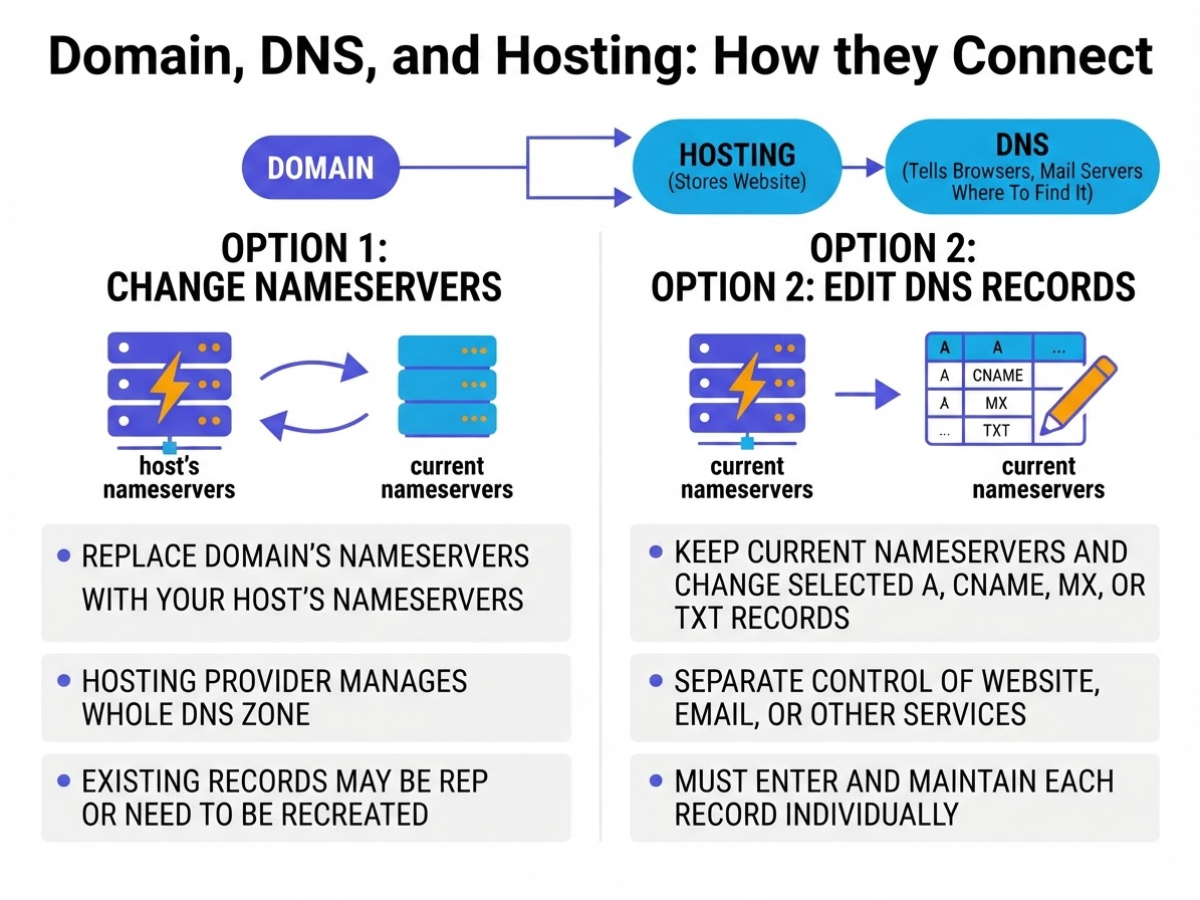
The confusing part of connecting a domain is that hosting and DNS do different jobs. Hosting stores your website; DNS tells browsers, mail servers, and other services where to find it. When I help set up client sites, the biggest mistake is treating those as one setting.
You usually have two ways to connect them:
| Option | What you change | Best fit | Main drawback |
|---|---|---|---|
| Change nameservers | Replace the domain’s nameservers with your host’s nameservers | The hosting provider will manage the whole DNS zone | Existing records may be replaced or need to be recreated |
| Edit DNS records | Keep your current nameservers and change selected A, CNAME, MX, or TXT records | You want separate control of your website, email, or other services | You must enter and maintain each record correctly |
Changing nameservers is usually the easier choice for a simple domain and website. Your host creates the DNS zone, and you follow its instructions, often by entering two nameservers at your registrar. This is convenient, but it can also move control away from the person currently managing email or verification records. Check what to look for in a web host before handing over that responsibility.
Direct record editing makes more sense when your email stays with Google Workspace, Microsoft 365, Zoho, or another provider. Point the root domain with an A record to your server IP, then use a CNAME for www if your host supplies one. Leave the email provider’s MX records in place, and preserve TXT records used for SPF, DKIM, domain verification, or other services.
Pro Tip: Take a screenshot or export of the existing DNS zone before changing nameservers, especially when the domain already handles business email.
Before changing anything, collect the hosting nameservers or server IP, the required www CNAME value, your current A and CNAME records, and every MX and TXT record. Do not delete MX records simply because you are connecting a website. Removing them can stop new messages from arriving, sometimes before you notice the problem.
DNS changes often appear quickly, but some resolvers keep old values for the record’s TTL, so allow up to 24 to 48 hours for the connection to settle. After that, test both the bare domain and www, then confirm that sending and receiving email still works. You can now put the website files or application on the server.
How to host a website from start to launch
I normally get a small site online in an afternoon, but the order matters. Keep your registrar login, hosting login, DNS details, and backup codes in one password manager because hunting for them later causes avoidable delays.
- Register your domain and choose a plan. Buy an available domain, or prepare one you already own, then select hosting based on your site’s needs. A simple portfolio can start with shared hosting; a busy shop requires more resources. Use these web host selection tips before paying, and check renewal prices rather than trusting the introductory rate.
- Create the hosting account. Enter your contact details, set a long unique password, and confirm the email address. During setup, mark your domain as the primary domain, not a temporary subdomain, unless you deliberately want to build privately first.
- Connect the domain to the server. Your host will provide nameservers such as
ns1.examplehost.comandns2.examplehost.com; replace the registrar’s defaults with those values. If you want to keep DNS elsewhere, add the required A record for the server IP and awwwCNAME instead. DNS changes can take several hours, so an old page appearing briefly does not necessarily mean you made a mistake. - Install your website software. Use the control panel’s WordPress installer if you want a manageable content site. For a custom HTML site, upload the files into
public_htmlusing the file manager or SFTP, then confirm thatindex.htmlorindex.phpsits in the correct folder. WordPress currently recommends PHP 8.3 or newer, MySQL 8.0 or newer or MariaDB 10.11 or newer, plus HTTPS support, so check those versions first. - Create a database only if required. WordPress and many PHP applications need a MySQL or MariaDB database, while a static site does not. Create a separate database user, give it only the required permissions, and store the database name, username, and password outside public files.
- Turn on SSL. Activate the host’s free Let’s Encrypt certificate or install a paid certificate, then redirect HTTP traffic to HTTPS. Test both versions, including
wwwand the non-wwwaddress, because mixed redirects and insecure image URLs are common first-launch annoyances. - Finish the essentials. Set the homepage, navigation, contact forms, business email, analytics, and automatic backups. Submit a test form yourself, send a message to the new address, and restore one backup so you know it is usable, not merely enabled.
- Test before promotion. Open the live URL on a phone, tablet, and desktop. Check menus, forms, images, buttons, page titles, and checkout steps. Google primarily uses the mobile version for indexing and ranking, and its Core Web Vitals guidance recommends LCP within 2.5 seconds, INP below 200 milliseconds, and CLS below 0.1.
After these checks pass, your site is hosted and ready for the next round of improvements.
Launch checks that prevent common hosting mistakes
Before you call a site live, test it as if you were a stranger who does not know how it was built. I have seen launches fail because the homepage loaded while the contact form silently discarded messages, or because the secure version worked but an old image still loaded over HTTP.
Start with the domain itself. Open both https://example.com and https://www.example.com, then confirm that one preferred version loads and the other redirects to it with a permanent redirect. Repeat the test on a deep page, not just the homepage. Also check that HTTPS covers forms, images, scripts, checkout pages, and login screens without browser mixed-content warnings.
Use this short mistake list during your final review:
- Email was never tested: Submit the contact form, check the recipient inbox and spam folder, and test a transactional message, password reset, and reply address. A green “sent” message proves very little.
- Backups exist only on paper: Confirm the backup schedule, where files and databases are stored, and the exact restore instructions. If possible, restore a copy to staging before launch.
- The admin area is still exposed: Delete default admin accounts, replace shared credentials, use unique passwords, enable automatic updates where appropriate, and remove plugins you do not need. Five abandoned plugins are a bigger risk than one missing feature.
- Staging is publicly searchable: Password-protect staging, remove test users and dummy content, and check that it is not indexed. Review
robots.txt, your XML sitemap, canonical URLs, and every important link. Google can generally crawl links built as HTML<a>elements with anhrefattribute, so avoid making key navigation depend only on scripts. - Search traffic was expected immediately: Publication is not the same as indexing. Google says most websites should not expect same-day indexing, so monitor Search Console for crawling, indexing, and coverage problems over the following days.
I also compare the final setup against these practical web-host checks before handing a site over. That extra pass is mildly tedious, but it catches the embarrassing failures visitors notice first.
Once these launch checks pass, focus on keeping the site fast, monitored, and maintained after publication.
What to monitor after your site goes live
A healthy hosting account does not guarantee visitors, rankings, or sales. In the first week, your site can show 99.9% uptime and quick page loads while search impressions remain at zero. That is normal. Google says most websites should not expect same-day indexing, so treat hosting health and marketing results as two separate scorecards.
I use this first-week checklist after every launch:
- Days 1–2: check the server. Confirm uptime, server errors, storage use, bandwidth, backup completion, SSL expiry, and suspicious login attempts. Set alerts rather than checking manually all day. A failed backup is more urgent than a quiet analytics dashboard.
- Days 3–4: test performance. Run the key pages through a performance tool on both desktop and mobile. Look for oversized images, scripts that load before the page becomes usable, broken caching, and menus or forms that fail on a narrow screen. Google recommends an LCP of 2.5 seconds or less, INP below 200 milliseconds, and CLS below 0.1 for a good experience. Those targets are useful, but do not obsess over a lab score while your contact form is broken.
- Days 5–7: review real activity. Check analytics, search impressions, form submissions, and email delivery. Send a test form yourself and confirm that the message reaches the right inbox. If you use WordPress, keep the server aligned with its recommended PHP, database, and HTTPS requirements, and review what to look for in a web host before blaming the site code.
Once the first week is stable, reserve 30 minutes each month for updates, a fresh backup, a restore test, user-access review, SSL and domain renewal dates, and suspicious-login checks. I consider restore testing underrated. A backup you have never restored is only a hopeful file.
Upgrade hosting when resource limits stay high, response times slow under normal traffic, the site needs scheduled jobs or higher email limits, or you need server-level control. Do not upgrade because rankings are flat. That is usually a content, indexing, or promotion problem, not a hosting problem.
With the technical baseline in place, focus on turning a reachable website into one that attracts and converts visitors.
My honest take on hosting your first website
I have helped beginners launch enough websites to see the same mistake repeat: they compare storage numbers first. For a small business site, dependable support, simple DNS controls, automatic SSL, working backups, and a clear upgrade path usually matter far more than an extra 50 GB of storage you may never use.
Here is the less obvious cost issue: the cheapest introductory plan is not always the cheapest choice. Renewal pricing, a rushed migration, a day of downtime, and paid add-ons can erase the initial saving quickly. I would rather choose a provider with predictable pricing and responsive support than save a few hundred rupees upfront and spend a weekend untangling DNS records.
Shared hosting is a sensible starting point for many blogs, portfolios, and small company websites. I would not treat it as a permanent fit by default, though. Slow pages, memory limits, failed backups, or a need for stricter operational control are signs that you have outgrown it, not problems to ignore indefinitely.
My preferred launch sequence is simple: secure the domain, connect DNS carefully, publish a minimal version, and test forms, mobile layouts, SSL, and email before promoting the site. Then improve based on real usage rather than guesses. A modest site that stays online is more useful than an impressive plan you cannot manage.
— AVM Cloud Content Strategy Team
Host your website with a simpler launch path
If you’re hosting your first site, AVM Cloud’s DomainAdda offering is worth comparing when you want domain registration and hosting support in one place. When I help new site owners set things up, the biggest snags are usually small but irritating: DNS changes, forgotten renewal dates, or uncertainty about whether SSL is ready. Keeping those tasks under one account can reduce that setup friction, though you still need to check each plan’s limits and renewal price.
Review the affordable hosting plans alongside the included resources, SSL options, backup details, and upgrade path before choosing. You can also manage your domain and hosting in one place, which is useful if you are starting with a basic site and may add email or more storage later. If you already own a domain, contact support before switching nameservers. The right host should make setup less annoying without taking control away from you.
Frequently Asked Questions
How much does it cost to host a website?
A basic shared hosting plan often costs around $3 to $10 per month at the introductory rate, while VPS, cloud, and managed hosting usually cost more. Check the renewal price, billing term, storage, email accounts, backups, SSL, and any setup fees before you buy, because the cheapest first-year offer can become expensive later.
Can I host a website without buying a domain?
Yes, most hosting providers give you a temporary URL or subdomain, so you can build and test the site without purchasing a domain. For a public launch, a custom domain is usually worth the extra cost because visitors can remember it more easily than a host-generated address.
How long does it take for a new website to go live?
A site can become reachable within a few minutes after you upload its files and configure DNS and SSL, but DNS changes can take up to 24 to 48 hours to reach everyone. Search engines often take longer to index the pages, so seeing your site online does not guarantee that it will appear in search results immediately.
Can I host a website from my own computer?
Yes, but you need a reliable internet connection, a public IP address or dynamic DNS, security updates, backups, and a computer that stays online 24 hours a day. I would avoid this setup for most business sites because one router failure, forgotten patch, or power cut can take the website offline.
What is the difference between web hosting and a website builder?
Web hosting provides the server space and software needed to deliver your website, while a website builder combines hosting with templates and visual editing tools in one service. A builder can let you publish in 1 afternoon, but separate hosting usually gives you more control over installations and makes moving to another provider easier.
Recommended reads
- What To Look For In A Web Host Check These 7 Tips
- Shared Vs Vps Hosting Know Which Is The Best Option
- Web Hosting Vs Domain Name The Difference
- Domainadda Hosting Review Everything You Need To Know
Sources
- Requirements – WordPress.org
- Understanding Core Web Vitals and Google search results | Google Search Central | Documentation | Google for Developers
- Mobile-first Indexing Best Practices | Google Search Central | Documentation | Google for Developers
- Troubleshoot Google Search Crawling Errors | Google Search Central
- SEO Link Best Practices for Google | Google Search Central
- HTTPS as a ranking signal | Google Search Central Blog | Google for Developers
- DNIB.com Reports Internet Has 378.5 Million Domain Name Registrations at the End of the Third Quarter of 2025 | VeriSign, Inc.
- KEYNOTE REPORT: Uptime Institute Global Data Center Survey 2024
- Annual outage analysis 2024 | Uptime Intelligence
- The Domain Name Registration Process – ICANN
Buy Cheap Domain : India Buying Guide
22/10/2026[…] How To Host A Website Step By Step Guide […]