

Google Workspace Email Hosting: Setup Guide
TL;DR: Google Workspace email hosting gives you Gmail on your business domain, plus Calendar, Drive, Meet, and admin controls for managing users. Choose an edition, verify your domain, point 1 MX record to
smtp.google.com, create users and aliases, then test delivery before switching everyone over.
When I help Indian businesses compare Google Workspace email hosting with lower-cost options from AVM Cloud and DomainAdda, the recurring frustration is simple: you want Gmail’s familiar inbox, but messages must come from your own domain, not a generic address. I’ve seen owners lose hours in DNS settings, then wonder why verification or delivery still fails. Google says its Workspace protection blocks more than 99.9% of attacks, though setup still has a few annoying traps. This guide walks you through plan selection, domain verification, DNS and MX setup, account creation, aliases, testing, migration considerations, and common mistakes.
| Point | Details |
|---|---|
| Custom Gmail Address | Google Workspace connects Gmail to your domain, such as you@your-company.com, instead of a generic Gmail address. |
| Storage By Plan | Business Starter includes 30 GB of pooled storage per user, while Standard and Plus provide 2 TB and 5 TB per user. |
| Correct MX Record | Email delivery depends on pointing your domain’s MX record to smtp.google.com with priority 1. |
| Test Before Switching | Verify domain ownership, DNS propagation, inbound and outbound mail, aliases, and authentication before announcing the change. |
| User Limit Planning | Business Starter, Standard, and Plus support up to 300 users, while Enterprise has no stated minimum or maximum user limit. |
What Google Workspace email hosting actually includes
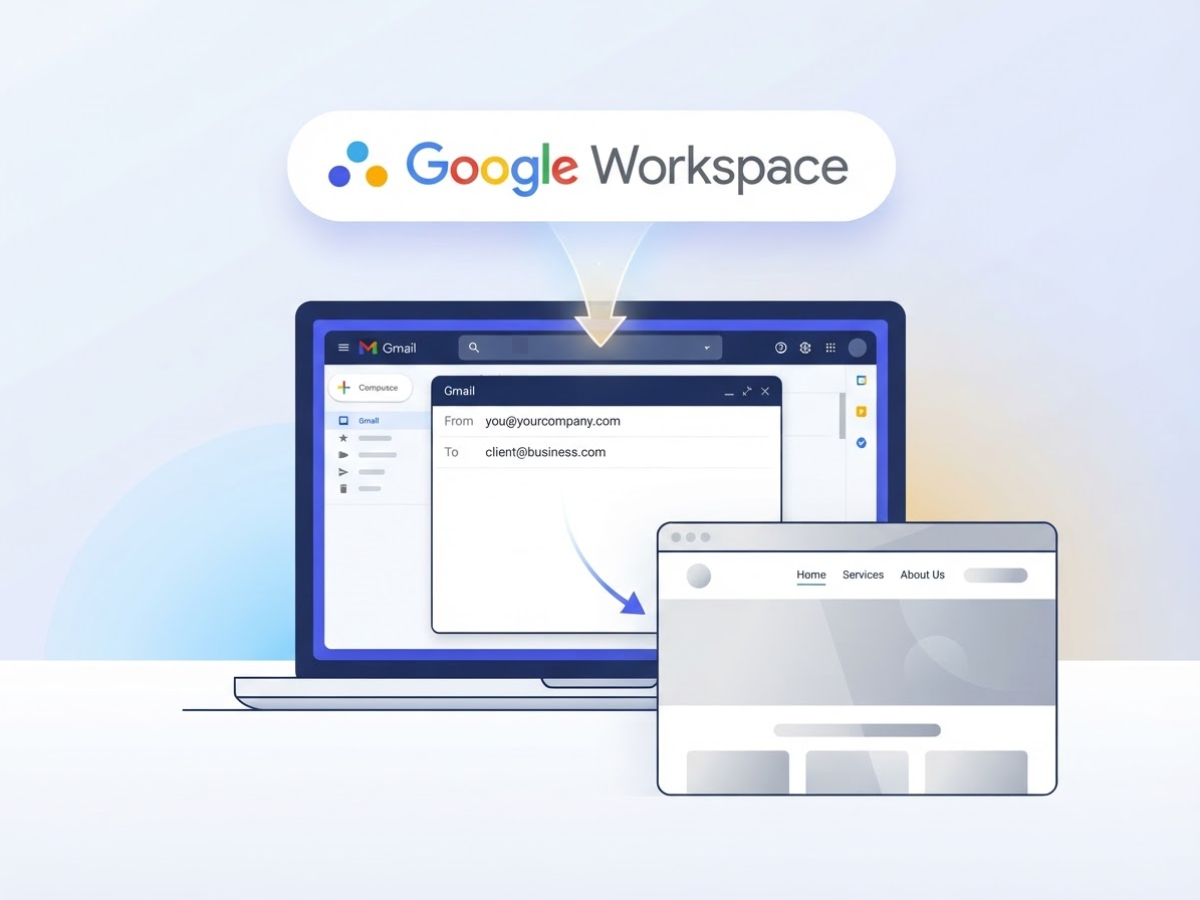
Google Workspace email hosting means Google stores and delivers your business mailbox, while you continue to own and manage your domain name. If your domain is yourcompany.com, Workspace lets you send from you@yourcompany.com through Gmail instead of using a personal @gmail.com address.
The domain, website, and mailbox are separate purchases. Registering a domain gives you the address, but it does not automatically provide a working inbox. Website hosting stores your site files, while Google Workspace stores email and related work data. You can keep your website with one provider and point your domain’s mail settings to Google.
When I help businesses set this up, the confusing part is that “Gmail” is only the familiar email interface. A Workspace account also connects the user to:
- Google Drive: file storage and sharing
- Google Calendar: personal and team scheduling
- Google Meet: video meetings linked to Calendar events
- Admin console: user accounts, security rules, groups, aliases, and access controls
- Custom-domain email: messages sent from your business address, not a generic Gmail address
Google’s Business Starter details list custom business email, 30 GB of pooled storage per user, and Meet calls for up to 100 participants. Business Standard moves to 2 TB per user and 150-participant meetings, while Business Plus offers 5 TB per user, Vault, and meetings for up to 500 participants. Those are the three main Business editions. Most small teams should start by checking mailbox and meeting needs, rather than paying for features nobody will use.
| Service | What it handles |
|---|---|
| Domain registration | Owns and renews yourcompany.com |
| Website hosting | Stores and serves your website |
| Workspace email hosting | Runs employee inboxes and business collaboration |
| Email marketing platform | Sends campaigns to lists of subscribers |
A normal Workspace inbox suits one-to-one conversations, support replies, invoices, and small internal updates. It is not a substitute for campaign software that manages opt-outs, subscriber lists, templates, and promotional delivery. Sending bulk promotions from employee accounts can also trigger limits or spam complaints.
Pro Tip: Treat the domain, mailbox, and marketing-sending platform as three separate decisions so a reader does not confuse Workspace email with email marketing.
For setup help or a business email plan, review AVM Cloud’s Google Workspace service page. The next decision is how many users, aliases, and shared addresses your team actually needs.
Is it the right email host for your business?
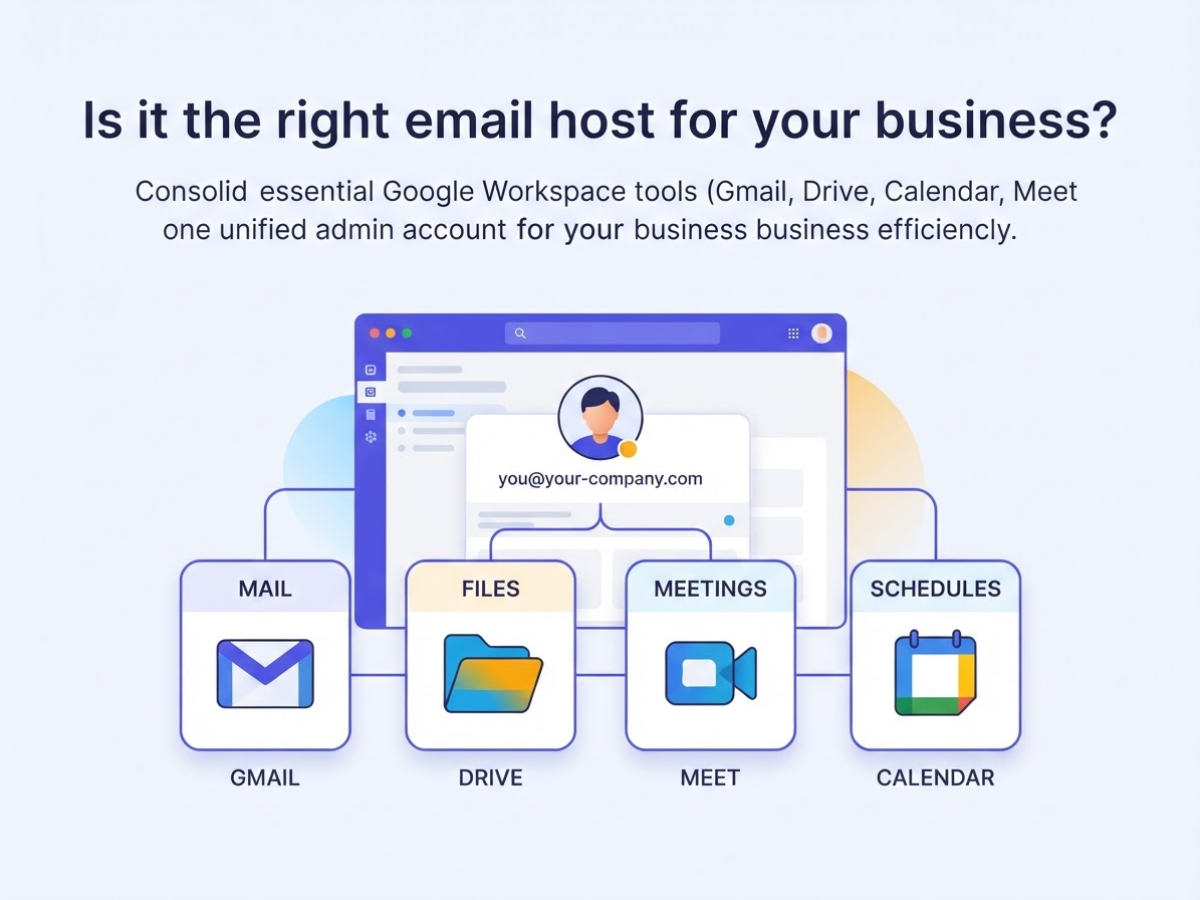
The quickest fit test is practical: if your team already works in Gmail, Drive, Calendar, and Meet, Google Workspace usually earns its monthly cost. You get custom addresses such as you@your-company.com, but the real value is keeping mail, files, meetings, and calendars under one admin account. I have seen teams pay for it mainly for “professional email” and then barely use anything else. That is an expensive mailbox.
Use this checklist before you choose:
- Freelancers: Choose it if you need a custom Gmail inbox and regularly share files with clients. A simpler mailbox may be enough for one person with light storage needs.
- Small businesses: Workspace fits when several people need shared Drive folders, company calendars, and Meet calls rather than separate consumer accounts.
- Growing teams: Choose it when onboarding, removing access, and controlling company data matters more than saving a small amount per mailbox.
- Agencies: It makes sense if clients join frequent calls or your staff collaborate on large design, video, or document files. For newsletters and bulk campaigns, use a dedicated marketing platform instead of ordinary Gmail.
- Existing Google users: If your team already lives in Drive and Calendar, moving mail elsewhere usually creates needless copying and sign-in problems.
Plan choice depends less on the mailbox and more on storage and meeting size. Business Starter includes 30 GB of pooled storage per user and Meet for up to 100 participants. Business Standard raises storage to 2 TB per user and meetings to 150 participants. Business Plus provides 5 TB per user, Google Vault, and meetings for up to 500 participants. Most small teams do not need Plus unless retention, archiving, or large meetings is a real requirement.
Pro Tip: Estimate active users, shared inboxes, storage growth, and meeting size separately; the cheapest per-user plan is not always the lowest total-cost option.
Business Starter, Standard, and Plus stop at 300 users, so larger organisations should evaluate Enterprise rather than forcing a Business plan past its limit. In India, Google lists a 14-day free trial for Business plans, which gives you a low-risk way to test migration, permissions, and meeting limits before committing.
Choose a basic mailbox if you only send and receive messages, self-hosted email if you have the technical staff to maintain it, and a marketing platform for campaigns, unsubscribes, and delivery reporting. Once the fit is clear, setup becomes the next decision.
Starter vs Standard vs Plus: which plan should you select?
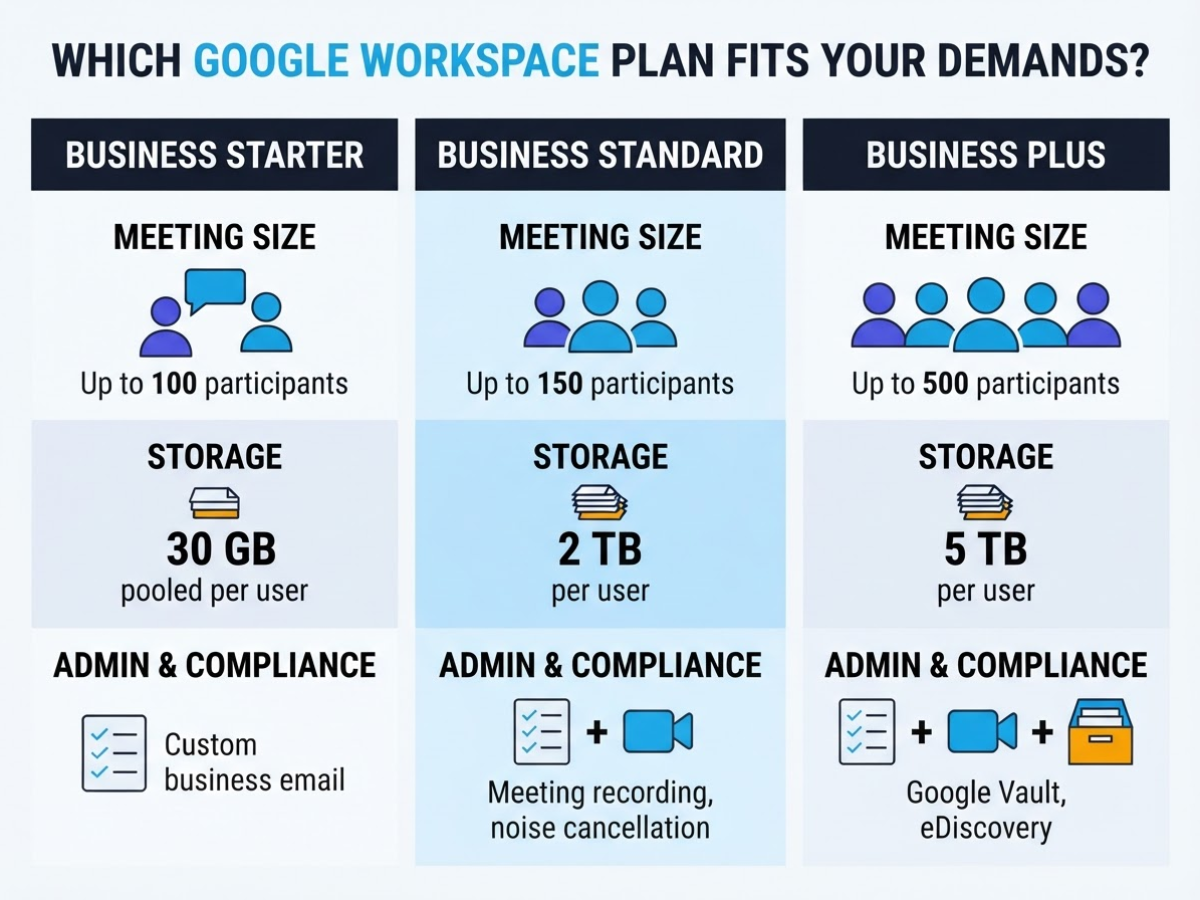
I’ve helped small teams choose Google Workspace email hosting, and storage is usually the least useful starting point. The better question is what your busiest team, largest meeting, or compliance policy will demand six months from now.
| Plan | Storage | Google Meet | Administration and compliance |
|---|---|---|---|
| Business Starter | 30 GB pooled per user | Up to 100 participants | Custom business email and everyday Gmail, Drive, Calendar, and Meet collaboration |
| Business Standard | 2 TB per user | Up to 150 participants | Meeting recording, noise cancellation, and more room for shared files |
| Business Plus | 5 TB per user | Up to 500 participants | Google Vault for retaining, archiving, and searching data, plus attendance tracking |
Business Starter suits a five-person company that needs addresses such as you@your-company.com, shared documents, and ordinary video calls. The 30 GB allocation is pooled per user, so it can feel tight if employees keep years of large attachments or upload video files. For basic email, though, paying for Plus is mostly wasted money.
Standard is the sensible middle choice for growing teams. Choose it when staff regularly store design files, recordings, or project material, or when 100-person meetings are no longer enough. Recording and noise cancellation matter in real meetings, but remember that recordings still consume storage and require sensible retention rules.
Plus earns its price when legal discovery, employee investigations, or formal retention policies are real requirements. Vault is the dividing line here, not the extra storage. A 500-person meeting limit also helps organisations running large internal briefings, although smaller businesses rarely need it.
Pro Tip: Choose the plan based on the most demanding regular user or compliance requirement, not the average employee’s mailbox size.
All three Business editions have a maximum of 300 users, as Google’s pricing details confirm. If you expect more than 300 accounts, need advanced security controls, or have complex regional compliance requirements, investigate Enterprise rather than piecing together workarounds. Before committing, check your headcount and retention needs alongside the mailbox budget.
How to set up Google Workspace email hosting
When I move a client onto Google Workspace email hosting, I prepare the domain and DNS details before opening the signup page. That avoids the most common delay: discovering that nobody knows where the domain’s DNS is managed.
- Gather the prerequisites. Confirm that you control the domain, can sign in to its registrar or DNS provider, and have an admin contact who will own the Workspace account. Prepare a list of every mailbox, decide whether you need Business Starter, Standard, or Plus, and document the current MX records before changing anything. Keep a rollback note with the old values and the date of the change.
- Start the Workspace account. Begin through the Google Workspace signup flow, enter your business details, choose the plan, and create the first administrator. Use a monitored business address for account recovery, not an employee’s temporary inbox. Google’s guided setup then asks you to prove that you own the domain.
- Verify domain ownership. Choose Google’s recommended verification method, usually adding a TXT record at your DNS provider. Copy the exact verification value into the DNS record, save it, and return to the Admin console to click the verification button. A typo in the host field is frustratingly easy to make, especially when a registrar automatically appends your domain name.
- Change the mail routing. In the domain’s DNS manager, add an MX record with type MX, priority 1, and destination
smtp.google.com. Remove or replace old mail-routing records only after recording them. Google’s setup instructions warn that DNS recognition can take up to 72 hours, although some changes appear within minutes.
Your domain’s MX records must point to Google’s mail servers before Gmail can send and receive Workspace email. Leaving an old provider’s MX record active can send messages to the wrong inbox or create inconsistent delivery.
- Create and secure users. Add each mailbox, set recovery phone numbers or backup email addresses, require strong passwords, and enforce two-step verification from the Admin console. Create shared addresses as groups or aliases where appropriate. Each user can have up to 30 aliases at no extra charge, which is useful for addresses such as
sales@andsupport@without buying separate seats. - Test before announcing the move. Send messages from an outside account into Workspace and reply externally. Test user-to-user delivery, mobile Gmail sign-in, alias delivery, and whether messages land in Inbox rather than spam. Check headers if delivery fails, then wait for DNS propagation before assuming the setup is broken.
Once these checks pass, you can move the team to Gmail with fewer missing-message surprises.
Five setup mistakes that interrupt business email
The worst email outages I have handled started with a rushed DNS edit. Keep a screenshot or export of the existing records, verify the domain in Google Admin, and only then change MX records. Deleting the old records first makes recovery harder, especially when another provider still handles part of your mail.
Common mistakes include:
- Entering
smtp.google.comin the wrong field, selecting TXT instead of MX, using the wrong priority, or adding a trailing value your DNS provider does not accept. Google’s current setup calls for an MX record with priority 1 and destinationsmtp.google.com. - Expecting mail to switch immediately. Google says MX changes can take up to 72 hours to be recognised, so keep the old configuration documented and monitor both systems during the change.
- Creating users without checking spelling, licence assignment, recovery phone or email, and administrator roles. One typo can create a mailbox nobody can access, while an unnecessary super admin creates a security headache.
- Treating an alias as a second mailbox. An alias routes mail to the primary user and does not provide separate login credentials. Use a licensed user or delegated mailbox when two people need independent access.
- Sending newsletters, application notifications, or relay traffic through ordinary business mailboxes. For larger volumes, configure the correct service instead. Google’s SMTP relay limit is 10,000 messages per user per 24 hours and 100 recipients per transaction, so it is not a blank cheque for campaigns.
After migration, test more than sending one message to yourself. Confirm SPF, DKIM, DMARC, forwarding, contact-form senders, scanners, CRMs, and other third-party services. A bounced inbound message usually points first to incorrect MX records or an unverified domain. Missing outbound mail calls for a check of the user’s licence, Gmail access, sending limits, and spam or rejected-message notices. Delayed delivery usually means DNS propagation, filtering, or a third-party queue, not a need to keep changing records.
I keep a timed checklist for the first 72 hours: test internal mail, an outside recipient, a reply, an attachment, forwarding, and every system that sends as the domain. That small bit of discipline prevents most “email is broken” calls before they reach the support queue. Next, the practical question is how to keep the new setup secure after mail starts flowing.
After launch: aliases, migration, and day-to-day management
The first week after cutover is when small problems become habits. In client setups, I treat aliases, migration, and admin controls as separate jobs rather than trying to fix everything during the DNS change.
- Days 1–3: sort addresses. Use an alias when one person owns the work, such as
sales@routing to a salesperson’s inbox. A user gets a separate login, mailbox, and account; a group gives several people access to the same conversation stream. Do not create a paid user for every public address. Each user can have up to 30 aliases at no extra cost, and messages sent to those aliases arrive in the user’s primary inbox. That is useful, but aliases do not provide shared ownership or independent login access. Google’s alias rules spell out the limits. - Days 4–10: migrate in stages. Move old mail first, then contacts and calendars. Ask users to recreate signatures, test mobile devices, and reconnect third-party apps instead of assuming the old settings transferred correctly. Keep the previous mailbox available during verification. I have seen teams lose saved contacts and reply from an unauthenticated app because they treated migration as one giant import.
- By day 14: lock down operations. Check every departing employee’s account, transfer required Drive and Calendar data, remove sessions, and document who has admin access. Review forwarding rules, recovery phone numbers, backup email addresses, delegated inboxes, and connected applications. Schedule a monthly review of sign-in alerts, two-step verification, forwarding, and inactive accounts.
Use SMTP relay only when a printer, website, CRM, or internal application must send mail. Google’s relay permits up to 10,000 messages per user in 24 hours, with 100 recipients per transaction, but setup and authentication can be irritating. For newsletters, promotions, or bulk SMS, use a dedicated service instead of your business mailbox. Keep transactional email separate from email marketing campaigns and coordinate urgent texts through an SMS marketing workflow.
Judge the launch by four results: no missed inbound messages, correct SPF, DKIM, and DMARC authentication, regular user adoption, and controlled access. Once those checks hold, you can handle the remaining support questions without turning every small change into an outage.
My honest take on Google Workspace email hosting
I have helped businesses move to Google Workspace email hosting, and I see it as a sensible default when your team already works in Gmail, Drive, Calendar, or Meet. The interface feels familiar, but the DNS work is where small companies get caught out. One wrong MX value can stop new messages from arriving, and DNS propagation can take time that you do not control. I always test delivery before switching every user over.
Here is my contrarian view: the highest-storage plan is rarely the right starting point. A small team usually gets more value from Starter while it records actual mailbox sizes, aliases, migration needs, and security requirements. Paying for unused storage feels prudent, but it often just hides the fact that nobody has measured the real need. Upgrading later is easier than explaining an unnecessary recurring cost.
I also keep marketing email separate from ordinary employee mail. Workspace is suitable for one-to-one business communication, but campaigns need consent tracking, unsubscribe handling, deliverability controls, and reporting. Mixing both streams creates confusing data and can damage routine correspondence when a campaign goes wrong. For AVM Cloud readers, my practical recommendation is simple: secure the domain, document the requirements, change DNS carefully, and test with real senders and recipients before onboarding everyone.
— AVM Cloud Email Hosting Specialist
Set up professional email with AVM Cloud
If you need Google Workspace email hosting, AVM Cloud can help you start with the less glamorous parts: choosing a domain, checking your hosting setup, and deciding what needs to move before you touch DNS. From the setup work I’ve seen, the biggest headaches come from changing records too early and then chasing missing mail or broken website services. Review the Google Workspace email hosting service first, or read the practical hosting review if you are still comparing options. The aim is straightforward: a professional address on your domain and a clearer setup path, with help for related web and marketing infrastructure. Contact the team before making DNS changes. Email marketing and SMS marketing are separate services when you need campaign functionality.
Frequently Asked Questions
Can I use my existing domain with Google Workspace email?
Yes. You can connect a domain you already own by verifying it, then changing its DNS MX record to smtp.google.com with priority 1. DNS recognition can take up to 72 hours, and a missed character in the record can leave mail delivery failing until you correct it.
How long does it take for Google Workspace email to start working?
You can create the account and users quickly, but email depends on DNS propagation. Google says MX changes may take up to 72 hours to become recognized, so test delivery during that period and again after it ends.
Can I have multiple email addresses in one Google Workspace account?
Yes. An administrator can add up to 30 aliases for each user at no extra cost. Messages sent to those addresses arrive in the user’s main inbox, but aliases do not provide separate logins, passwords, or inboxes.
Is Google Workspace email the same as Gmail?
It uses the Gmail interface, but Google Workspace email belongs to a managed business account with your own domain and administrator controls. You also get tools such as Drive, Calendar, and Meet, although the extra settings can feel confusing if you only need basic email.
Can Google Workspace send bulk marketing emails?
It can send some larger batches, but Google Workspace is intended mainly for one-to-one business communication rather than regular campaigns. Its documented SMTP relay limits include up to 10,000 messages per user in 24 hours and 100 recipients per transaction, so a dedicated email marketing platform is usually safer for campaign delivery and unsubscribe management.
Recommended reads
- Google Workspace
- Domainadda Hosting Review Everything You Need To Know
- 6 Email Marketing Tips To Hit Your Goals In 2026
- Sms Vs Email Which Is Better For Your Business In 2026
Sources
- Business streamlining and collaboration solutions | Google Workspace
- Compare flexible pricing plan options | Google Workspace
- Google Workspace Terms of Service – Google Workspace
- Set up MX records for Google Workspace – Google Workspace Admin Help
- Add or delete an alternate email address (email alias) – Google Workspace Admin Help
- Route outgoing SMTP relay messages through Google – Google Workspace Admin Help
- Troubleshoot problems receiving emails in Gmail – Google Workspace Admin Help