

Email Server for Business: Setup and Selection Guide
TL;DR: An email server for business manages professional addresses on your domain, delivers and stores messages, and handles security and authentication. You can choose hosted email, a self-managed server, or a hybrid setup, but every option needs three essentials: correctly configured DNS, mailboxes, and SPF, DKIM, and DMARC authentication to protect deliverability.
Using a personal mailbox for client work or a poorly configured domain email can make your business look less credible, send messages to spam, and leave teammates hunting through one person’s inbox. That gets painful when a customer needs an old quote or an employee leaves without handing over account access. The Radicati Group forecasts 4.730 billion worldwide email users in 2026, so business email remains a basic operating tool, not a nice extra. This guide covers hosted versus self-hosted servers, mailbox and storage choices, DNS records, SPF, DKIM, DMARC, security, testing, and ongoing administration for Indian businesses and growing teams.
| Point | Details |
|---|---|
| Choose Hosted Email | Hosted business email usually reduces server maintenance, patching, backups, and deliverability work compared with running mail infrastructure yourself. |
| Use Your Domain | A custom mailbox gives each employee a consistent address such as name@yourcompany.com and keeps business communication separate from personal accounts. |
| Authenticate Every Sender | Configure SPF, DKIM, and DMARC, then verify DNS records and alignment before sending important customer or marketing messages. |
| Match Capacity Carefully | Compare user count, storage, attachment limits, aliases, shared mailboxes, and sending volume instead of choosing only by a monthly price such as $5 per user. |
| Protect Account Access | Use strong passwords, multi-factor authentication, admin controls, backups, and monitoring because one compromised login can expose years of business correspondence. |
What Is an Email Server for Business?
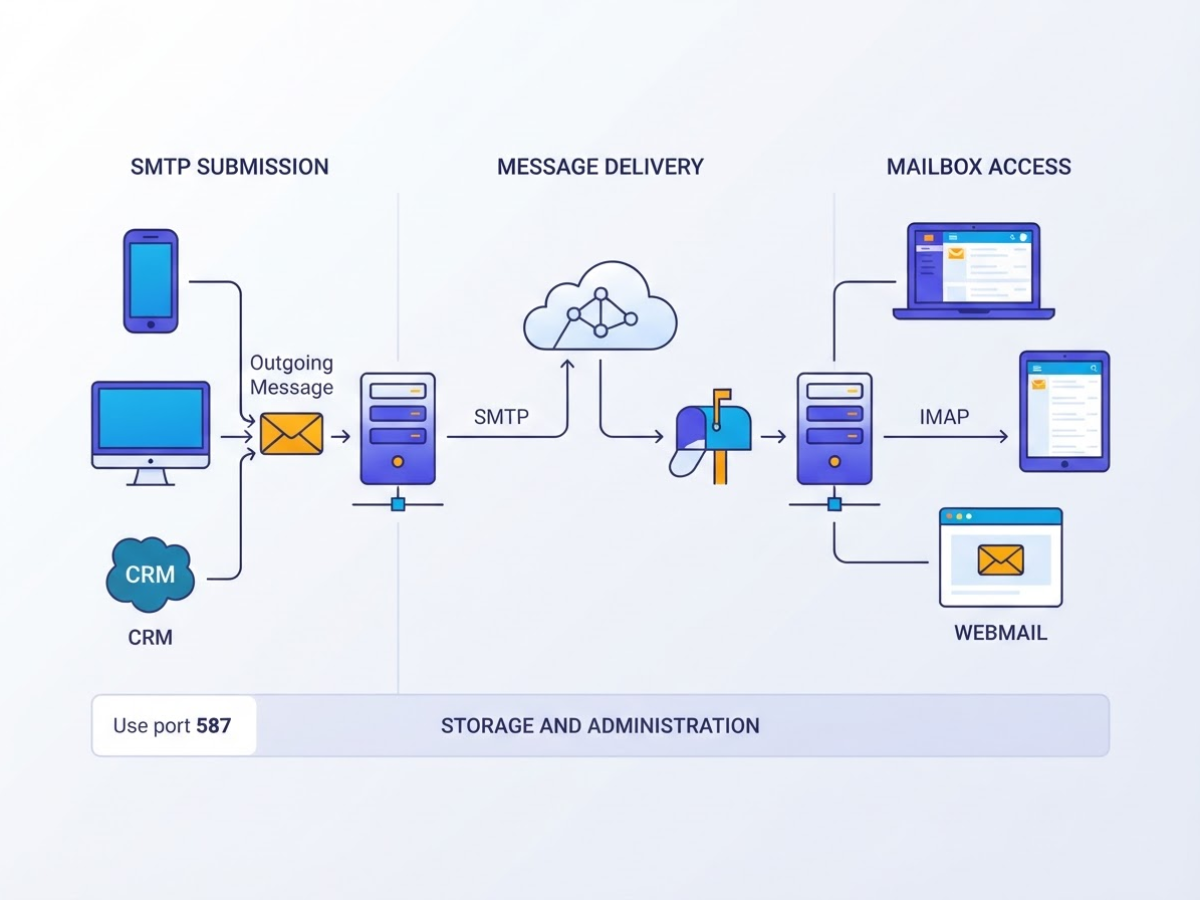
An email server for business handles the delivery, storage, and access behind addresses such as you@yourcompany.com. When I help businesses set this up, the confusing part is that “email server” can mean several connected services, not just one computer.
A typical business setup covers:
- SMTP submission: Your phone, desktop app, website, or CRM hands an outgoing message to the server. Use port 587, which is reserved for message submission, in supported client configurations, as specified by RFC 2476.
- Message delivery: The server looks up the recipient’s mail server and transfers the message using SMTP.
- Mailbox access: IMAP keeps messages synchronised across devices, while webmail lets you read and send mail in a browser.
- Storage and administration: The provider stores messages, manages mailbox limits, resets passwords, and handles spam controls.
- Aliases and forwarding:
sales@,support@, andbilling@can point to a real mailbox or forward elsewhere without requiring a separate paid user in every case.
Pro Tip: Treat the email server, DNS, and domain reputation as one system during setup rather than troubleshooting them separately.
Your domain and DNS records are part of the setup too. MX records tell other servers where to deliver mail. SPF, DKIM, and DMARC help receiving providers check whether messages are authorised. A missing record can make a correctly configured mailbox look broken, which is one of the most annoying first-day problems.
| Option | What you manage | Practical trade-off |
|---|---|---|
| Hosted email server | Mostly accounts, policies, and users | Easier setup, recurring cost, provider limits |
| Private self-hosted server | Software, updates, reputation, backups, and security | More control, but one missed patch or blacklist can disrupt mail |
| Email marketing platform | Campaigns, subscriber lists, and bulk delivery | Not a replacement for employee mailboxes |
Employee and transactional email, such as invoices, password resets, and support replies, should remain separate from bulk marketing email. Marketing platforms handle consent, unsubscribe links, and campaign volume better; sending newsletters from an employee mailbox often damages its reputation. For the practical configuration details, see this email service for business setup guide.
Which Business Email Server Model Fits Your Team?
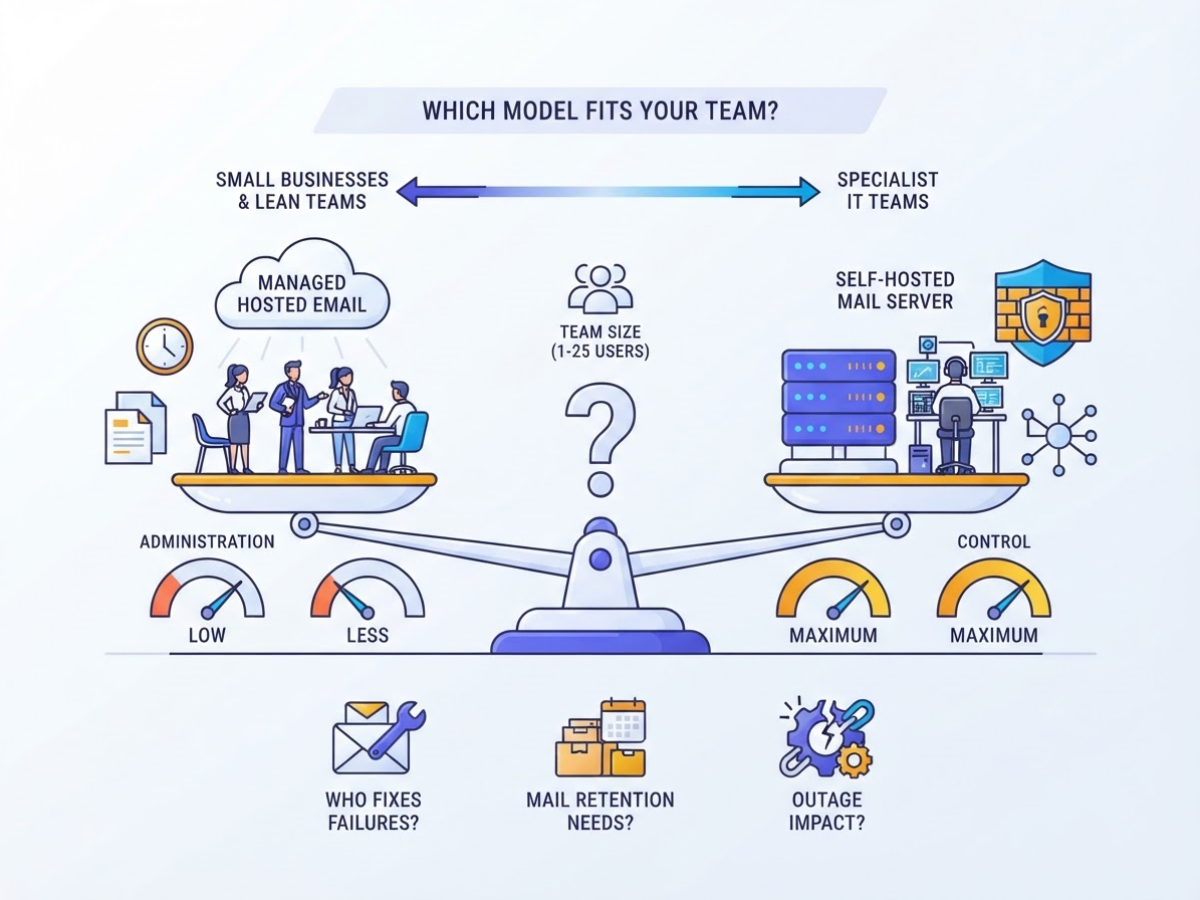
Your team’s size matters, but it is not the only deciding factor. The right email server for business depends on who will fix delivery failures, how much mail you retain, and whether a two-hour outage is merely irritating or financially damaging.
| Model | Usually fits | Main trade-off |
|---|---|---|
| Managed hosted email | Small businesses and lean teams | Less control, but far less administration |
| Productivity suite | Teams that need email plus files, calendars, and collaboration | Higher cost and more settings to manage |
| Self-hosted mail server | Specialist IT teams with unusual requirements | Maximum control, plus maximum responsibility |
Managed hosted email is usually the sensible starting point for a business with 1 to 25 users. Your provider handles server maintenance, spam filtering, updates, and much of the backup work. You still need to configure DNS, SPF, DKIM, user accounts, and forwarding rules, but you avoid spending Friday night investigating why Outlook stopped syncing. Check whether the plan includes shared addresses such as sales@, mobile access, mailbox retention, migration help, and human support before comparing monthly prices. A practical email service for business setup guide can help you list those requirements.
A Google Workspace-style productivity suite suits teams that already work in shared documents, calendars, video meetings, and cloud storage. Storage is a real comparison point: Google lists 30 GB per user for Business Starter, 2 TB for Business Standard, and 5 TB for Business Plus, shared across its services. Those figures do not increase email attachment size. The editions still list a 25 MB sending limit and a 50 MB receiving limit, so large design files may need a separate file-sharing workflow.
Self-hosting only makes sense when you have an administrator who understands mail reputation, Linux, DNS, security updates, backups, and recovery testing. It can be justified by an unusual application integration, strict infrastructure-control requirements, or a policy that keeps messages on equipment you operate. Otherwise, the low software bill hides expensive work: blacklist appeals, patching, monitoring, storage expansion, and migration away from a failed disk.
Pro Tip: Ask who will handle blacklist appeals, security patches, backups, and failed delivery investigations before choosing self-hosted email.
Before you choose, write down user count, shared addresses, mobile needs, storage per user, attachment sizes, retention period, backup ownership, support hours, migration assistance, and your acceptable uptime. Once those constraints are clear, the next step is matching them to the server features your business actually needs.
Hosted Email Server vs Self-Hosted Mail: The Practical Trade-Off
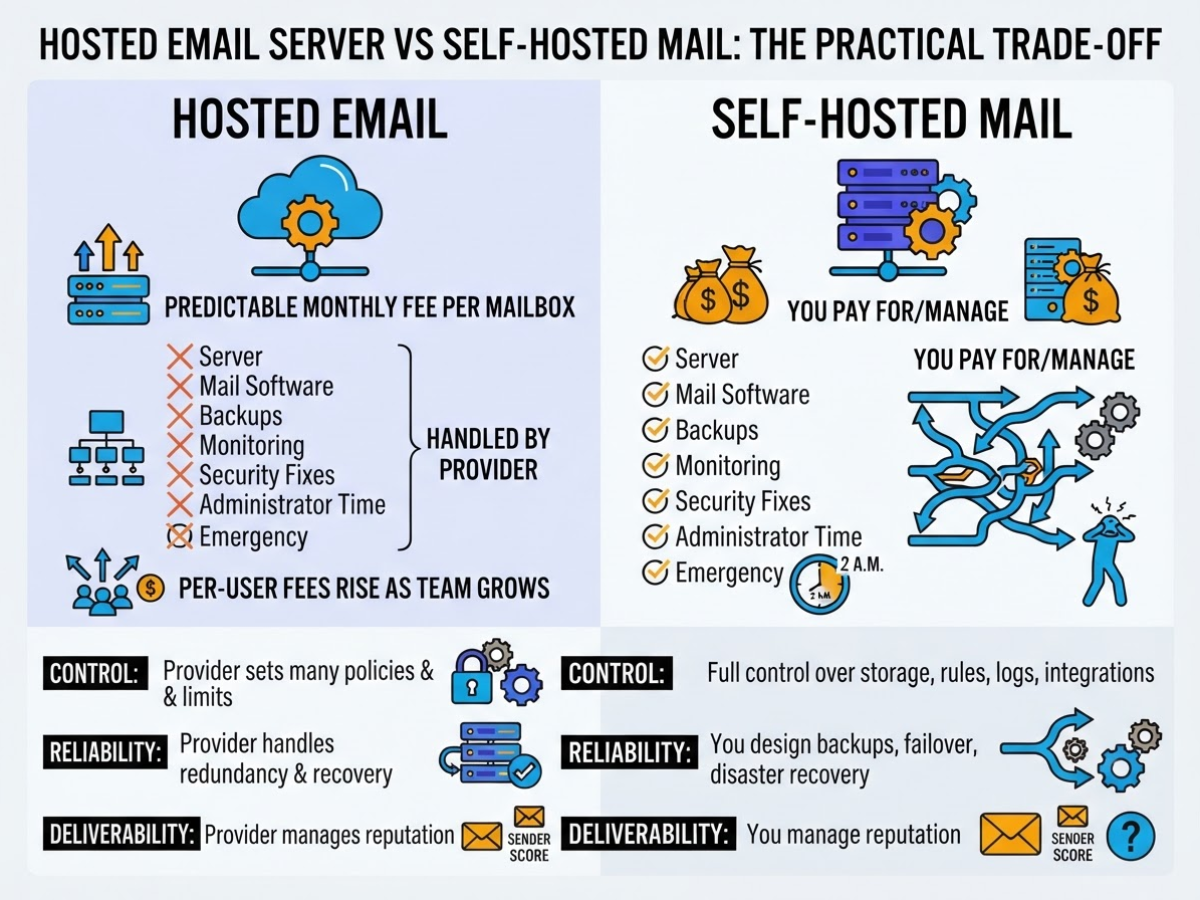
The first surprise is that self-hosting rarely stays cheap after the trial month. You pay for the server, mail software, backups, monitoring, security fixes, administrator time, and the occasional emergency at 2 a.m. A hosted email server for business replaces most of that with a recurring subscription, although per-user fees rise as your team grows.
| Factor | Hosted email | Self-hosted mail |
|---|---|---|
| Cost | Predictable monthly fee per mailbox | Lower software cost, but adds infrastructure and staff time |
| Control | Provider sets many policies and limits | Full control over storage, rules, logs, and integrations |
| Reliability | Provider handles redundancy and recovery | You design backups, failover, and disaster recovery |
| Deliverability | Provider manages reputation and sending practices | You own IP reputation, DNS, complaints, and blocks |
| Updates and support | Managed patches plus a support desk | Your administrator handles upgrades and troubleshooting |
| Growth | Add mailboxes within plan limits | Add capacity, bandwidth, and maintenance yourself |
Control sounds attractive until a mailbox stops sending because your IP acquired a poor reputation. You must maintain reverse DNS, TLS, SPF, DKIM, and DMARC, investigate abuse, remove compromised accounts, and respond to blocklists. Since February 1, 2024, Gmail has required all senders to use SPF or DKIM, valid forward and reverse DNS, TLS, and a spam rate below 0.3% under its sender requirements. Providers usually have established IP pools and deliverability teams, but shared reputation and provider rules can still frustrate you.
Limits matter more than the headline mailbox price. Check storage, mailbox counts, daily recipient caps, per-minute rate limits, and attachment sizes before you commit. For example, Exchange Online limits one mailbox to 10,000 recipients per day and 30 messages per minute. That is plenty for employee correspondence, not a license for a newsletter operation.
Pro Tip: Calculate the annual cost of one hour of IT downtime before comparing a hosted plan with the apparent savings of self-hosting.
| Business type | Practical starting point |
|---|---|
| Solo professional | Hosted mail unless you already administer Linux and DNS |
| Small team | Hosted mail for predictable support and recovery |
| Agency | Hosted employee mail; self-host only for a genuine client-specific need |
| Larger organization | Hosted or hybrid, depending on compliance, legacy systems, and internal staff |
Keep employee email separate from bulk campaigns. Use a dedicated marketing service for high-volume sends, consent management, unsubscribe handling, and bounce processing. For mailbox setup and DNS checks, follow this business email setup guide. Next, match your choice to the storage, sending, and compliance requirements your team will actually face.
How to Set Up an Email Server for Business
Start with a spreadsheet, not the admin console. A clear inventory prevents the usual mess: list every user, department address, alias, shared inbox, forwarding rule, mobile device, and mailbox that needs migration. Note old mailbox sizes, export formats, compliance requirements, and addresses that must keep receiving mail during the change.
- Choose the provider and create the tenant. Compare mailbox storage, migration tools, support hours, attachment limits, and recovery controls before you pay. Then verify your domain, create a separate administrator account, and add users, aliases, groups, shared inboxes, storage rules, recovery email addresses, and emergency contacts. A business email setup guide can help you check these basics before committing.
- Point the domain at the provider. Replace the old MX records with the provider’s records, using the exact priorities it gives you. While you are in DNS, publish SPF for approved senders, generate and publish the provider’s DKIM record, and add a DMARC TXT record at
_dmarc.yourdomain.com. DMARC policies are published as DNS TXT records under the_dmarcsubdomain, so do not place that record at the root domain by mistake. - Lock down administration and access. Require multi-factor authentication for every user, especially administrators, and assign limited admin roles instead of sharing one login. Turn on TLS, audit logs, retention rules, backups, and mailbox recovery, then write down how you will restore a deleted account or recover from a compromised password. Recovery settings are boring until someone loses a phone at 7:30 a.m.
- Configure real devices. Test webmail first, then set up each mobile and desktop client with the provider’s secure IMAP or Exchange access and authenticated SMTP submission. Use port 587 for message submission, not an unencrypted legacy setting, and avoid saving administrator credentials in user profiles.
- Run a pilot before migration. Test internal delivery, external delivery, replies, attachments, spam placement, forwarding, and authentication results in message headers. Send to Gmail and other major providers, because Gmail requires senders to use SPF or DKIM, valid DNS, and TLS. Migrate a small department first, compare old and new folders, and confirm calendars or contacts if the provider supports them.
- Launch and document the fallback. Migrate the remaining mailboxes, keep the old service available during the agreed overlap period, and switch users in batches. Record DNS changes, account ownership, credentials storage location, support contacts, license dates, migration results, and rollback steps. After launch, monitor bounces, spam complaints, forwarding failures, and audit alerts for at least one week.
With the mailboxes live and authentication verified, you can judge whether the service is actually meeting daily business needs.
Business Email Security and Deliverability Mistakes to Avoid
The easiest way to damage a business email server is to treat security and deliverability as someone else’s problem. I have seen teams spend days recovering a compromised mailbox after using a shared password that never changed. Start with these avoidable mistakes:
- Using weak passwords, skipping MFA, or sharing one admin login across the team.
- Leaving former employees’ accounts active, including forwarding rules and saved sessions.
- Sending sensitive invoices or customer details to personal inboxes for convenience.
- Publishing incomplete SPF, DKIM, or DMARC records, or adding two SPF records that conflict.
- Sending newsletters from an ordinary employee mailbox instead of a dedicated marketing service.
- Ignoring provider limits, then blaming the server when messages are throttled or blocked.
Your From domain also needs to align with the domain authenticated by SPF or DKIM. A message can pass one check and still fail DMARC alignment, which makes spoofing easier and inbox placement worse. When setting up your business email service, keep one authoritative SPF record, add DKIM for every sending platform, and begin DMARC with reporting before enforcing rejection.
Technical housekeeping matters more than most teams expect. Missing reverse DNS, expired TLS certificates, malformed RFC 5322 headers, or an invalid message body can trigger rejection. Google also expects senders to use SPF or DKIM, valid forward and reverse DNS, TLS, correct formatting, and a spam rate below 0.3% for Gmail delivery requirements. Gmail’s bulk-sender rules apply when you send more than 5,000 messages in one day to Gmail accounts. At that point, you need DMARC and one-click unsubscribe for marketing and subscribed messages.
Do not use a staff mailbox for a 20,000-recipient newsletter. Exchange Online, for example, limits one mailbox to 10,000 recipients per day and 30 messages per minute. Clean bounced and inactive addresses, record consent, honor unsubscribe requests promptly, and avoid purchased lists. Yahoo expects bulk senders to use SPF and DKIM, publish DMARC with at least p=none, support one-click unsubscribe, process requests within two days, and keep spam complaints below 0.3%.
Once these controls are in place, the next decision is how your team should manage storage, access, and daily mail operations.
How to Measure Whether Your Business Email Setup Works
A working email server for business should give you evidence, not just a green status page. In client setups, I track successful delivery, bounce rate, spam complaints, SPF/DKIM/DMARC alignment, mailbox usage, support tickets, and downtime from the first day. A 98% delivery rate may look acceptable, but a sudden bounce increase or repeated delays can signal a damaged sender reputation before users complain.
Use this review timeline:
- Daily: Check outages, failed authentication, unusual forwarding, and new support tickets. Watch for sudden login attempts or messages sent from accounts that normally send very little.
- Weekly: Run seed tests to Gmail, Yahoo, Outlook, and your most important customer domains. Check delivery, delays, and spam placement, but do not treat one inbox result as a guarantee. Filters change by recipient, content, reputation, and history.
- Monthly: Review DNS records, inactive accounts, administrator access, forwarding rules, backups, mailbox usage, and provider limits. Confirm that departed staff no longer retain access and that shared inboxes still have named owners. Storage warnings are irritating, but missing a customer reply is worse.
- Quarterly: Compare response speed, shared-inbox coverage, complaint volume, and downtime with business needs. Test whether a staff change leaves billing, support, or sales messages unattended.
Read DMARC reports each month. Investigate every unknown sending source before increasing campaign volume; it could be an abandoned tool, a misconfigured CRM, or a compromised account. Also check your provider’s limits. For example, Exchange Online caps an individual mailbox at 10,000 recipients per day and 30 messages per minute, while Google Workspace business editions limit sent attachments to 25 MB.
Write escalation rules in plain language: freeze a compromised account immediately, pause campaigns after a sudden bounce spike, investigate any blacklist notice the same day, and roll back or verify a failed DNS change before retrying. I also keep a change log because DNS troubleshooting becomes guesswork when nobody remembers what changed.
For a fuller pre-launch checklist, use this email service for business setup guide. These measurements show whether your setup supports fast replies, customer trust, and continuity, which makes choosing the right operating model the next decision.
My honest take on choosing an email server for business
I steer most small and growing businesses toward managed hosted email, not a self-operated mail server. I have seen generalist teams lose half a day to a broken DNS record, then discover that nobody owns the recovery process. Running email is not just installing software. You also inherit mailbox security, reputation monitoring, updates, backups, delivery failures, and the occasional angry customer who never received a reply.
Here is the contrarian part: the cheapest monthly plan is often the most expensive choice. One missed sales message, compromised mailbox, or failed migration can cost more than months of hosting fees. I would check for a custom domain, responsive support, MFA, usable admin controls, clear backup and migration terms, and documented SPF, DKIM, and DMARC support before I compare storage limits or promotional prices.
I would also keep employee mail separate from bulk marketing infrastructure. A mailbox built for one-to-one conversations is not automatically fit for campaigns, and mixing the two can damage delivery for ordinary customer messages. Self-hosting makes sense when a capable IT team needs specific control or an unusual integration, but I treat it as an ongoing operational duty, not a one-time server project. If you lack dedicated email expertise, buy simplicity. Buy control only when you can actively manage it.
— AVM Cloud Content Strategy Team
Set Up Business Email with DomainAdda
When I help a small team move to an email server for business, the hardest part is rarely creating mailboxes. It is deciding what each person actually needs, then getting DNS records, aliases, security settings, and sending limits right the first time. A rushed setup can leave messages bouncing or staff checking two inboxes.
DomainAdda’s business email setup guide gives you a clearer place to start. Before choosing a plan, list your users, storage needs, shared addresses, security requirements, and expected sending volume. Those details matter more than picking the longest feature list.
DomainAdda can also help you compare domain, hosting, and email options together. Review its domain and hosting services, then contact the team if you are unsure which configuration fits your business. The setup may still involve a few technical steps, but you will avoid paying for mailboxes or services you do not need.
Frequently Asked Questions
Can I use Gmail with my own business domain?
Yes. You can connect a custom domain to Google Workspace, create addresses such as you@yourcompany.com, and verify ownership by adding DNS records. Unlike a free @gmail.com account, the setup usually takes about 15 minutes and requires correct mail-routing settings.
How much does it cost to set up a business email server?
The price depends on your provider, user count, storage, support, migration, backups, and security features, so compare the monthly mailbox fee with administration and recovery costs. Self-hosting can add charges for a server, monitoring, maintenance, spam control, and deliverability problems, while a hosted plan may cost roughly $3 to $20 per user each month.
What DNS records are needed for business email?
Most businesses need MX records for mail routing, SPF and DKIM for sender authentication, and DMARC for policy and reporting. You may also need to add your CRM, website contact form, and marketing platform to the approved sender list, and DNS changes can take up to 48 hours to appear everywhere.
How many business email addresses should a small company create?
Create 1 named mailbox for each employee who needs individual access, then use aliases or shared mailboxes for addresses such as sales@ or support@. Review the list every 3 months and disable accounts as soon as employees leave, since unused accounts waste money and create avoidable security risks.
Can a business email server send newsletters and bulk campaigns?
A standard business mailbox can handle routine customer messages, but daily, per-minute, and sender-reputation limits make it a poor choice for campaigns beyond a few dozen recipients at a time. Use a dedicated email marketing service for consent records, unsubscribe links, delivery tracking, and larger sends, because repeated bulk mail from a normal mailbox can damage its reputation.
Recommended reads
- Email Service For Business Setup Guide
- Domain Mail Setup Guide For Business Email
- Google Workspace Email Hosting Setup Guide
- 6 Email Marketing Tips To Hit Your Goals In 2026
Sources
- Email Statistics Report, 2022-2026
- Email sender guidelines – Gmail Help
- Sender Best Practices | Sender Hub
- Troubleshoot outbound sending limits in Exchange Online – Microsoft Defender for Office 365
- Compare Gmail features across Google Workspace editions
- RFC 2476: Message Submission | RFC Editor
- 2025 DBIR: Credential Stuffing Attack Research & Statistics | Verizon
- RFC 7489 DMARC